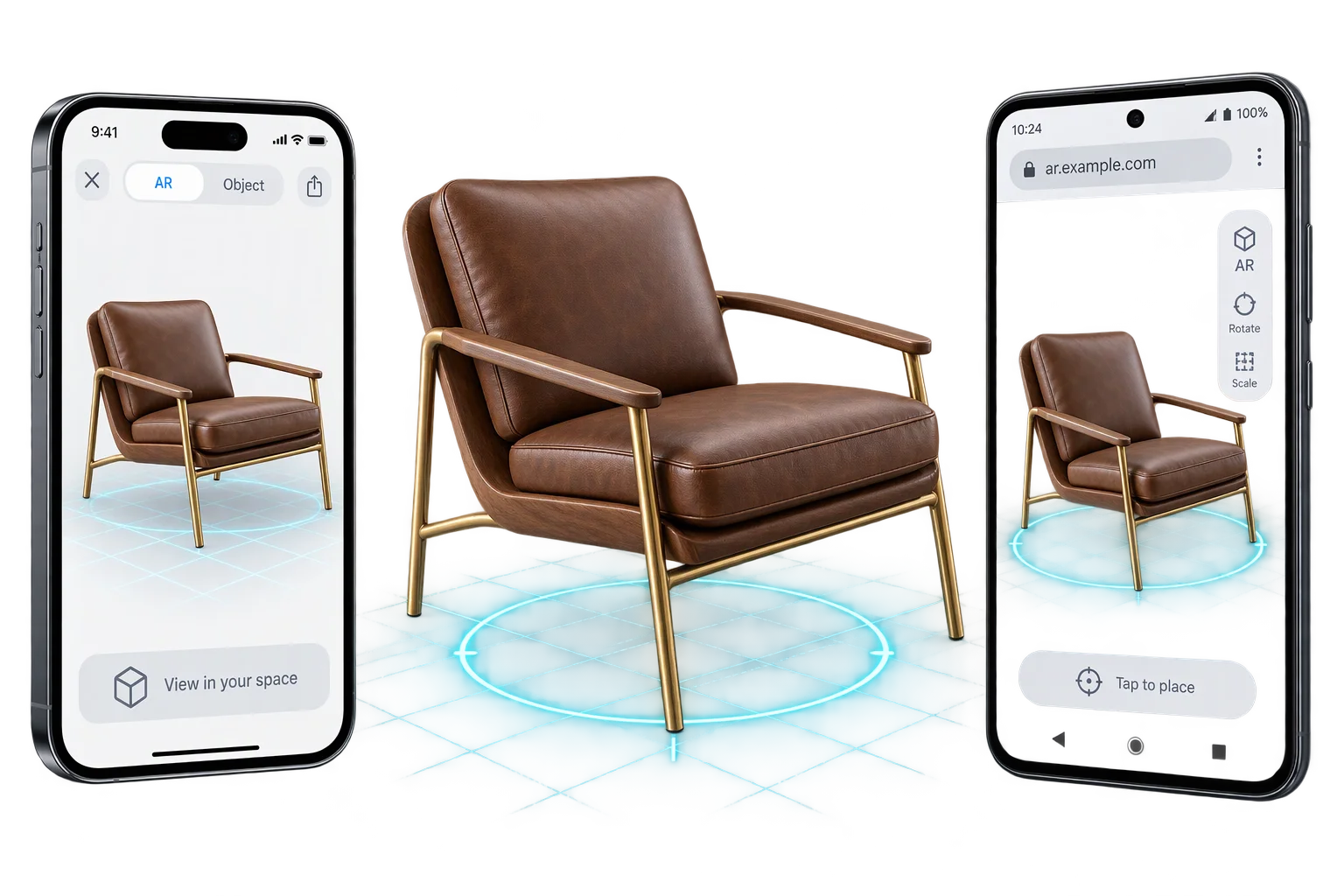
Texture-baked 3D exports to USDZ, GLB, and OBJ
Standard 3D exporters drop custom surface finishes, uploaded logos, and true-scale wood or fabric tiling when saving a file. Aircada bakes live surface finishes and decals into portable 2D textures in the browser and exports the customer's exact configured build to USDZ, GLB, GLTF, or OBJ.
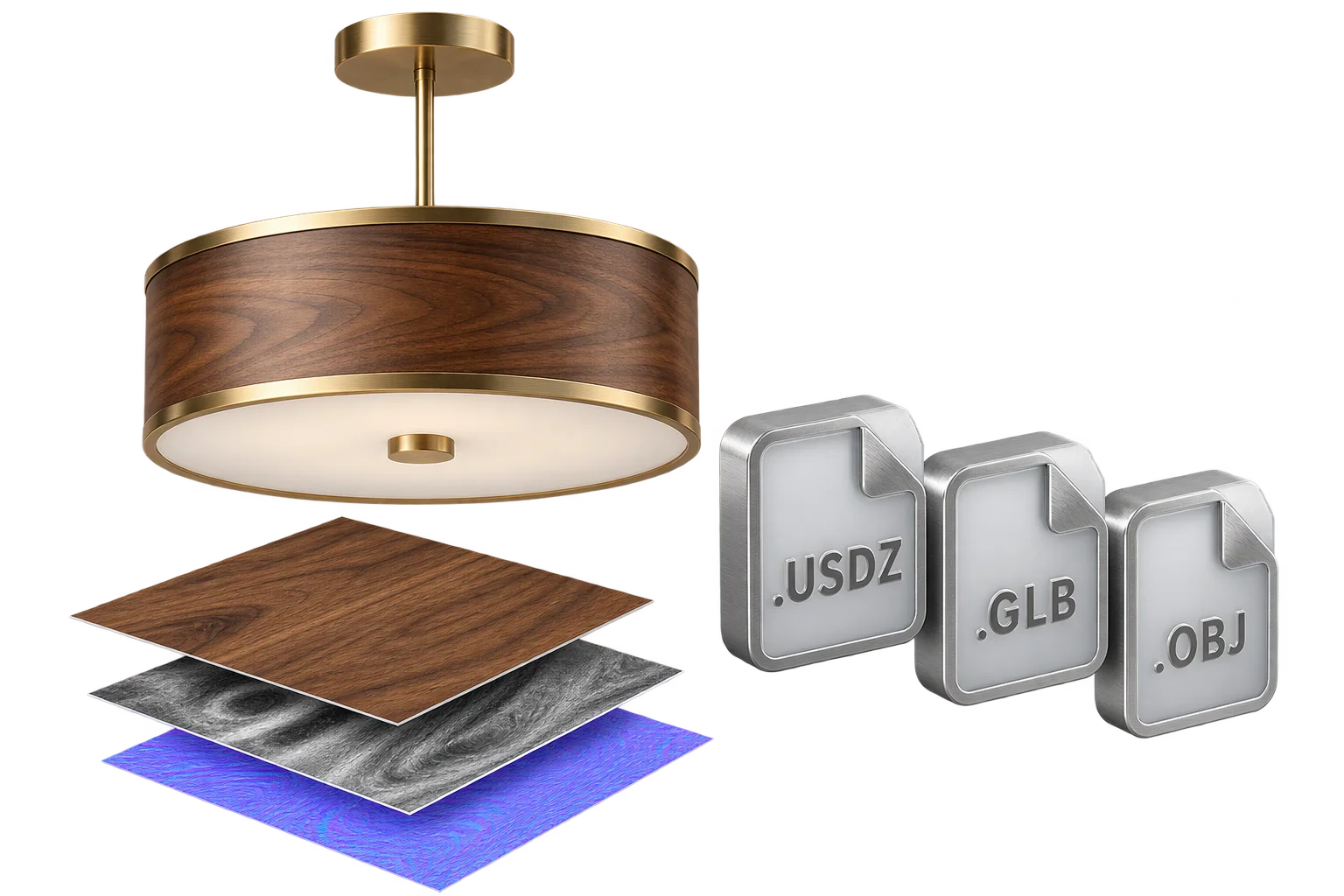
Why standard 3D exports lose custom finishes and decals
When a customer configures a bespoke pendant fixture, a custom-wrapped cornhole board, or a modular lab bench in the browser, the live 3D viewport relies on dynamic procedural shaders, world-scale UV projections, and canvas-rendered customer logos. Running a naive 3D exporter directly on that live scene fails because external AR viewers and desktop CAD tools cannot evaluate browser shader graphs, leaving buyers with blank white models or missing artwork.
Aircada solves this with an isolated preparation and baking pass before serialization. Through procedural shader-to-texture baking and client-side USDZ and GLB synthesis, the exporter clones only the customer's visible configured parts, flattens active surface effects and decals into standard 2D texture maps, applies viewer-specific calibration (including wall-mount alignment and iOS AR roughness tuning), and outputs a self-contained file ready for instant download, mobile AR launch, or upload alongside Shopify and headless quote or order workflows.
How live 3D customizations become portable CAD and AR files
Aircada clones the active 3D scene into an isolated buffer, bakes dynamic finishes into 2D textures, and serializes the target format on demand.
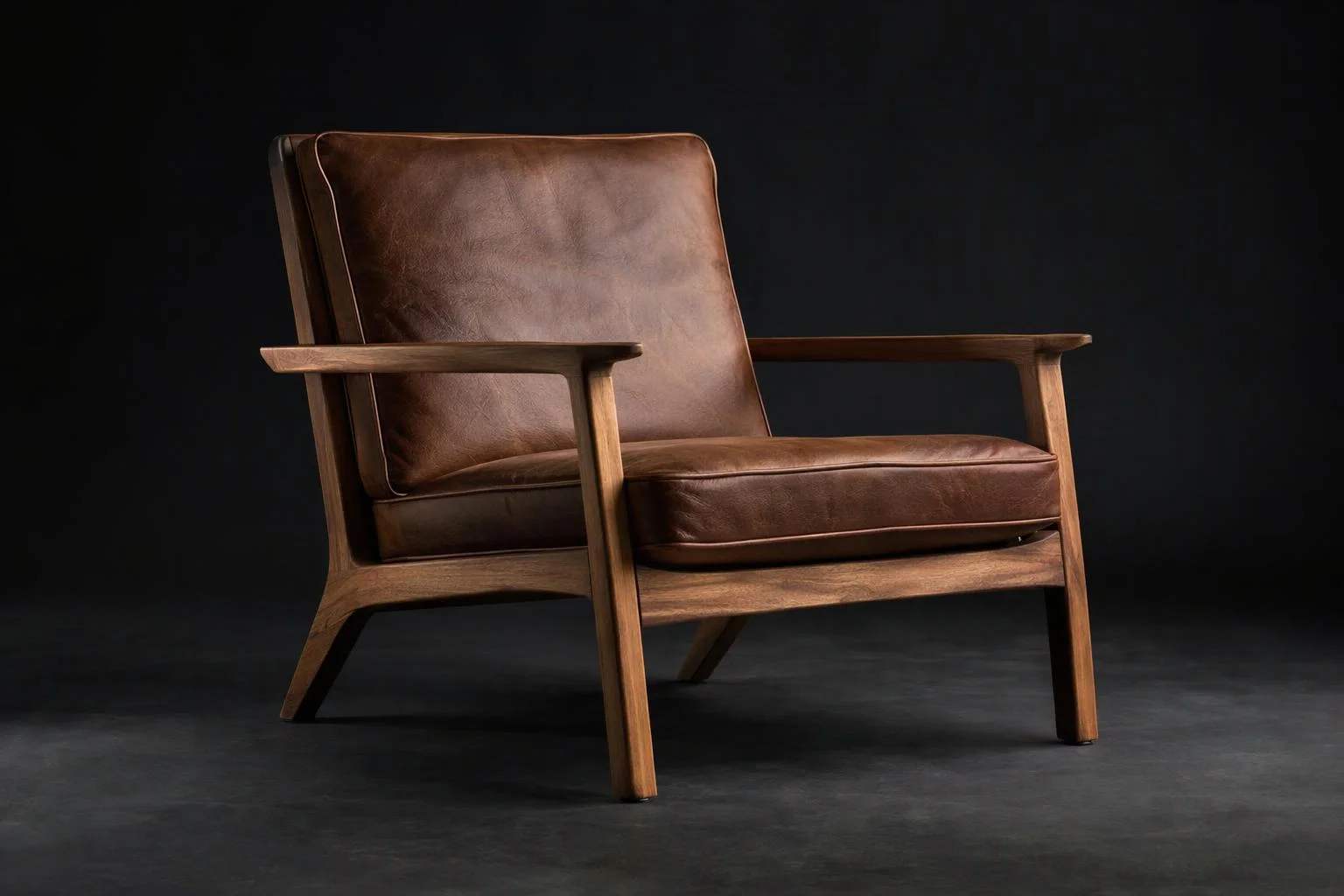
Procedural shaders, world-space UVs, and dynamic decals
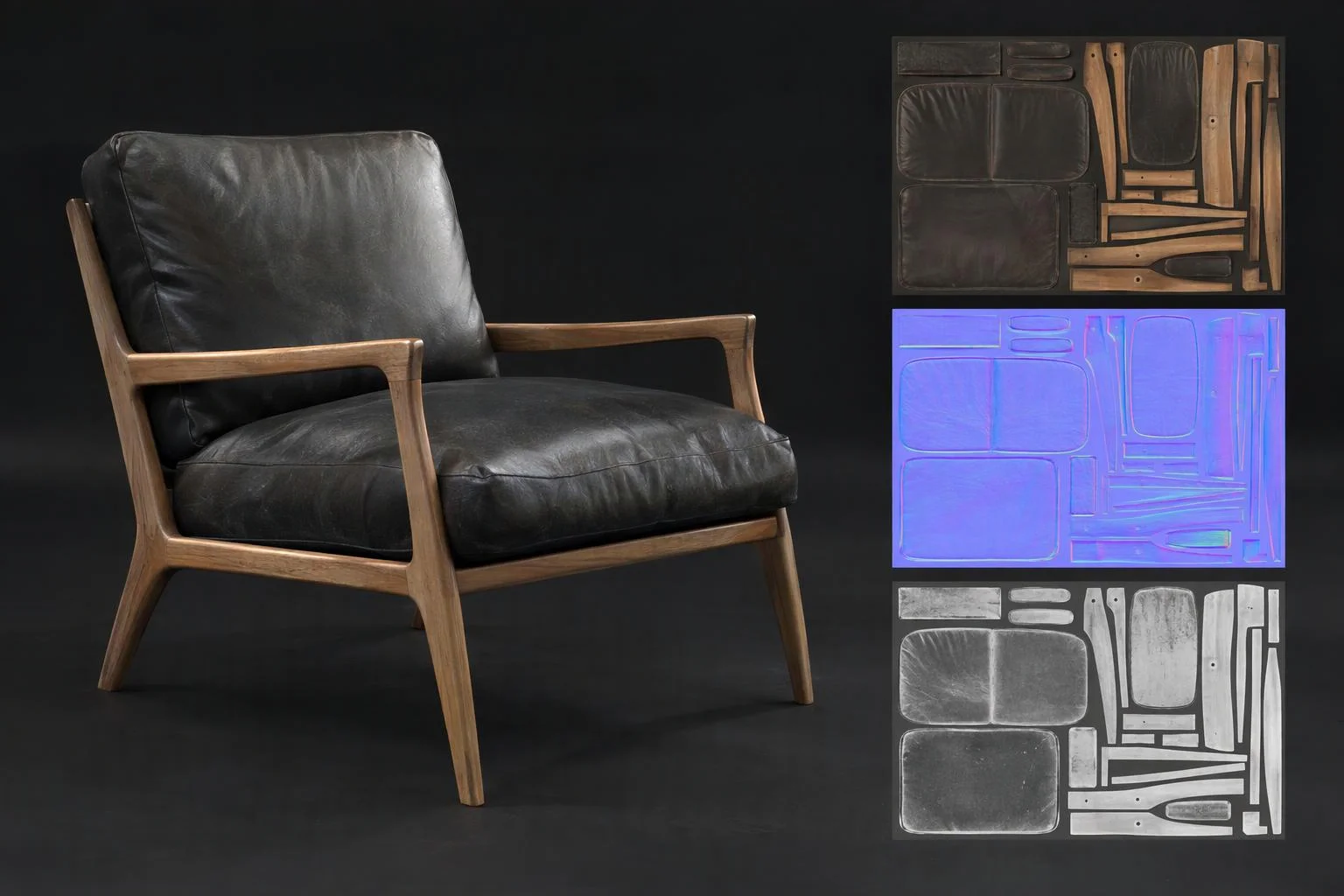
Self-contained USDZ, GLB, GLTF, or OBJ with baked 2D PBR maps
Apple USDZ (.usdz), Binary glTF (.glb), JSON glTF (.gltf), and Wavefront OBJ (.obj), loaded lazily on demand
Inspects active PBR channels and bakes live procedural finishes and decals into standard 2D texture maps with diffuse caching
Clones visible assemblies, strips hidden variants and helpers, preserves animations, and supports Z-up or wall-mount alignment
Apple AR Quick Look profile (1.15x roughness compensation) and Web-optimized GLB profile (1.0x standard PBR)
All scene cloning, texture baking, and binary serialization execute directly on the client device with mobile memory yields between sub-assemblies.
Two export adaptation profiles for AR and CAD/Web
Tailor material sheen, orientation, and texture packing to the destination viewer.
Apple iOS AR Quick Look (USDZ)
Apple's native iOS AR Quick Look renderer evaluates specular highlights glossier than standard browser viewports. When exporting for iPhone AR, Aircada applies a 1.15x roughness calibration multiplier, bakes custom finishes and decals, and supports automatic vertical wall-mount rotation so wall-hung products snap flush to vertical room planes.
- Generates self-contained USDZ archives directly in Safari on iPhone and iPad with zero server wait
- Applies a 1.15x roughness multiplier so satin wood, leather, and brushed metal stay natural in iOS AR
- Automatic wall-mount alignment (-90 degree rotation with back contact snapped to plane) for wall signage and fixtures
- Launches straight into {{@link:capabilities.3d-technology.ar-room-placement|label=room-scale AR placement}} without installing a native app
How brands use real-time 3D model export
Bridge browser customization with mobile augmented reality and architectural specification.

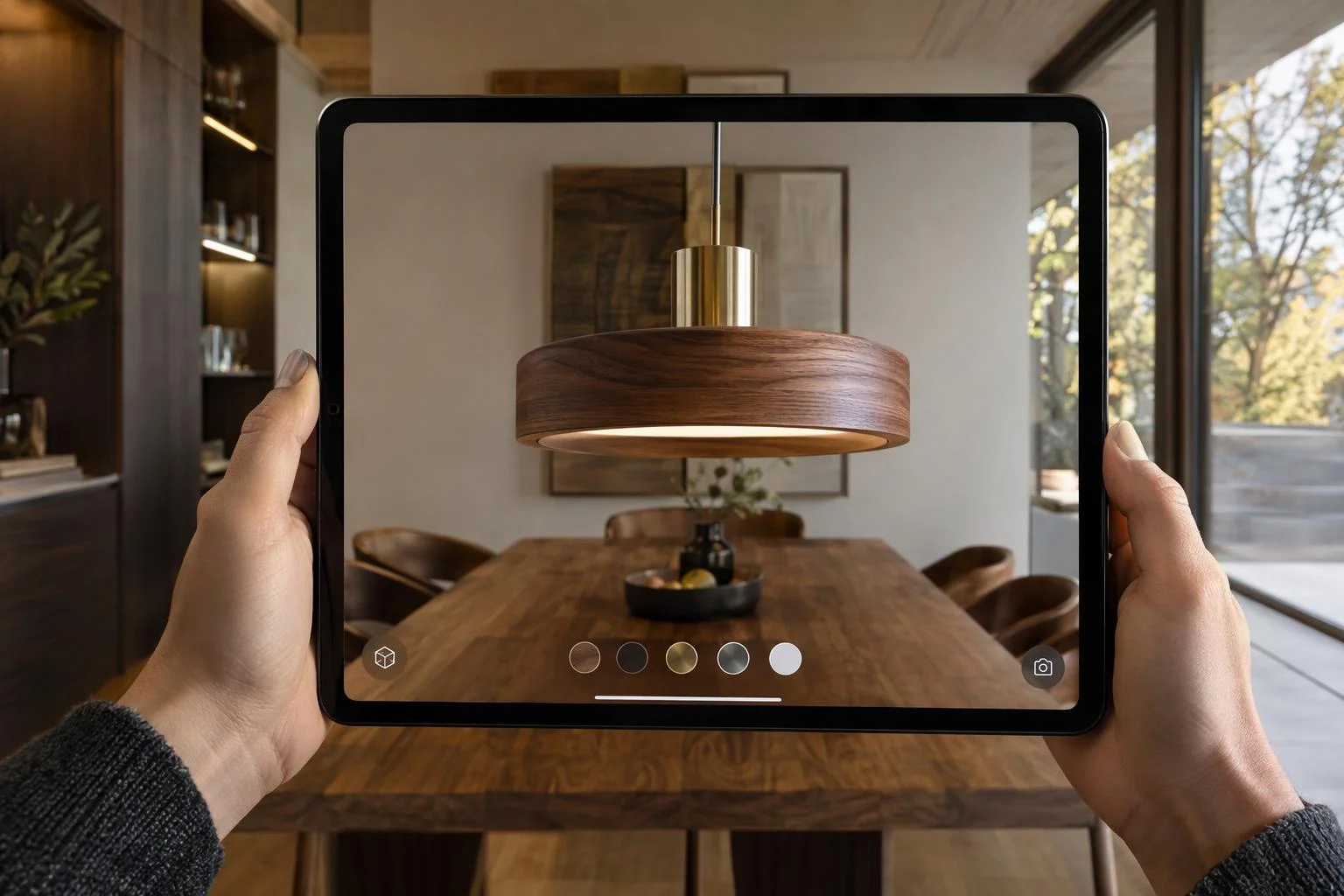
Instant iOS AR Quick Look room preview
Convert the shopper's customized upholstery, wood stain, and dimensions into a calibrated USDZ file for one-tap iPhone AR placement.
Read More about Instant iOS AR Quick Look room preview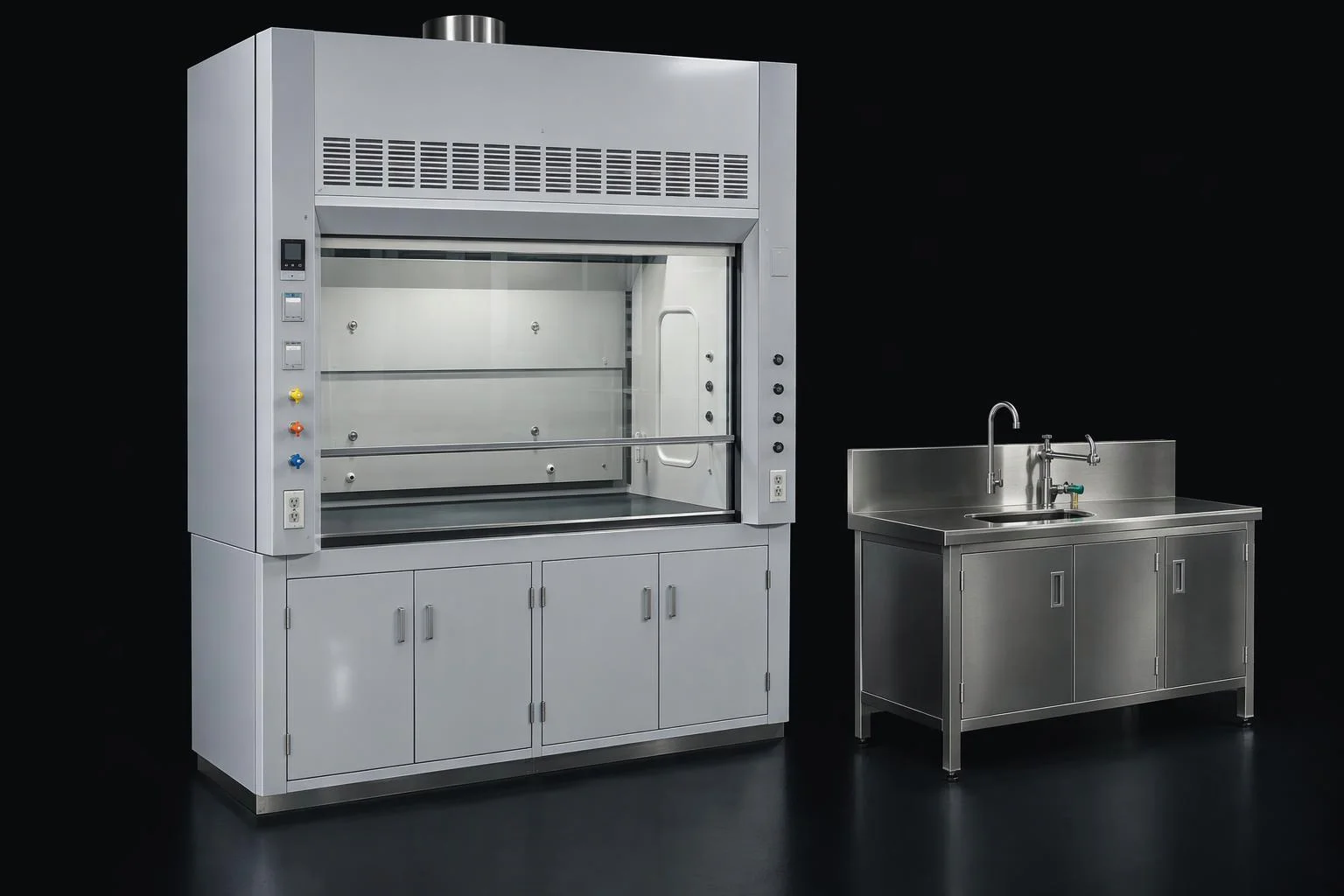
Self-serve 3D spec downloads for architects
Let commercial buyers configure a custom fixture or lab bench and download the exact 3D GLB or OBJ to drop into their project scene.
Read More about Self-serve 3D spec downloads for architects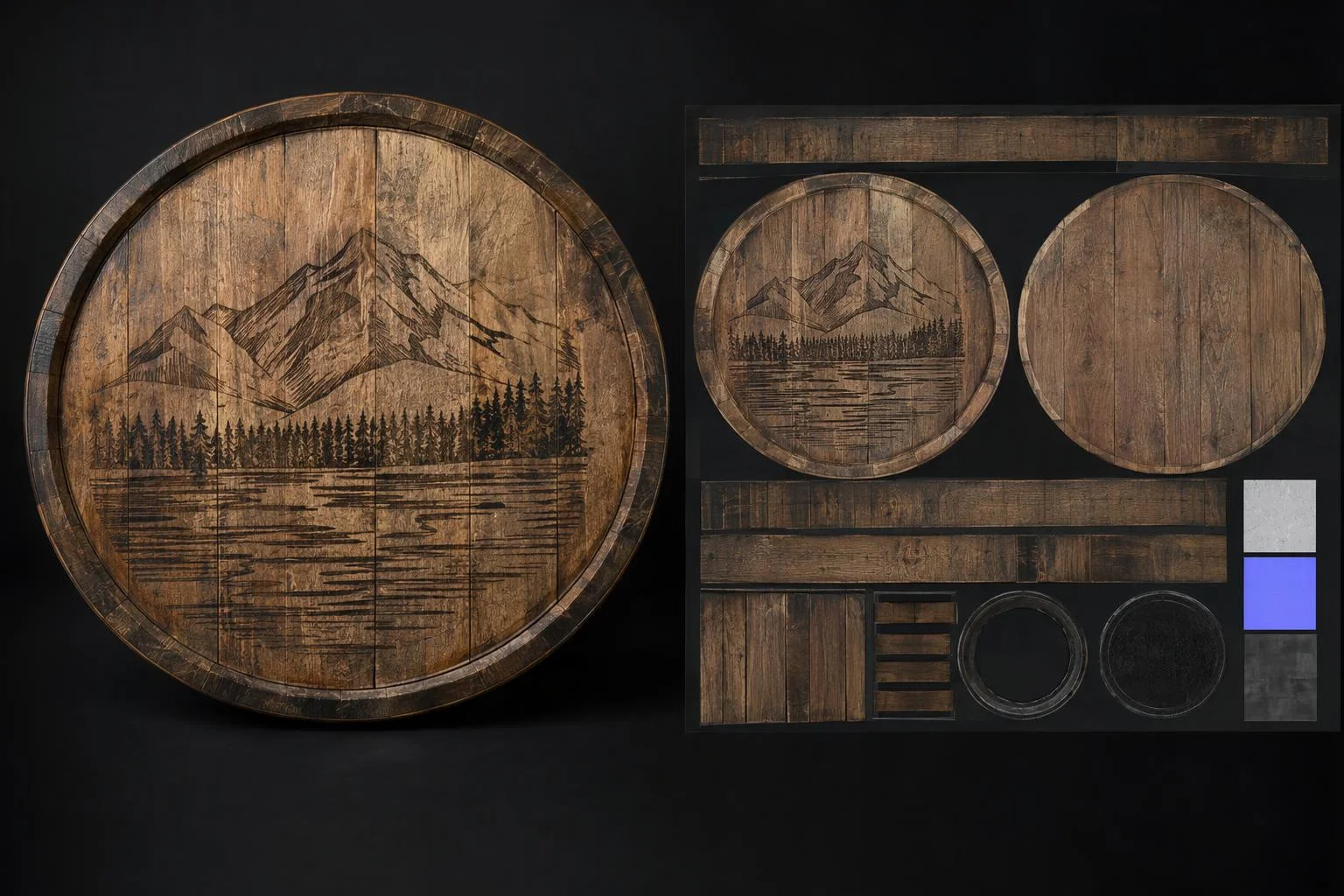
Archive personalized 3D builds with baked artwork
Flatten dynamic text engravings and uploaded logos into portable 2D texture maps inside a single archived GLB file.
Read More about Archive personalized 3D builds with baked artwork
Responsibility Tiers
- 1 Native Aircada layer
- 1 Aircada Configuration layer
- 1 Custom Implementation layer
- 1 External layer
Responsibility Boundaries Across 3D Model Export
How Aircada's export pipeline, Studio export triggers, custom quote/order routing, and external viewers divide responsibilities.
Scene sanitization, shader-to-texture baking, roughness calibration & USDZ/GLB/GLTF/OBJ serialization
- Native Aircada
- On-demand exporter loading, isolated hierarchy cloning, dynamic finish baking to 2D textures, 1.15x AR Quick Look roughness adjustment, wall-mount and Z-up orientation, and browser binary/file generation.
Target format selection, permissions & export action bindings
- Aircada Configuration
- Configured in Aircada Studio via publishing export permissions, scale/axis options, and UI download or AR launch buttons.
Gated B2B lead-capture forms & order-record file upload
- Custom Implementation
- Wrapping the browser export file behind an architect registration modal or uploading the exported 3D package to your CRM, quote builder, or Shopify order storage.
Downstream third-party viewer lighting (iOS Quick Look, SketchUp, Revit)
- External
- How external software environments light and shade the exported USDZ, GLB, or OBJ file once opened outside the browser.
Frequently Asked Questions
Why do custom 3D finishes and decals need to be baked before exporting to USDZ or GLB?
Why does Aircada adjust material roughness when exporting to Apple USDZ?
Which 3D file formats can be exported live in the browser?
Are hidden accessories or inactive option meshes included in the exported file?
Keep large 3D catalogs fast with automated model compression
Reduce polygon counts with quadric error metrics and compress vertex buffers for instant mobile loading.
Related capabilities
Explore the adjacent capabilities and integrations that pair with this workflow.
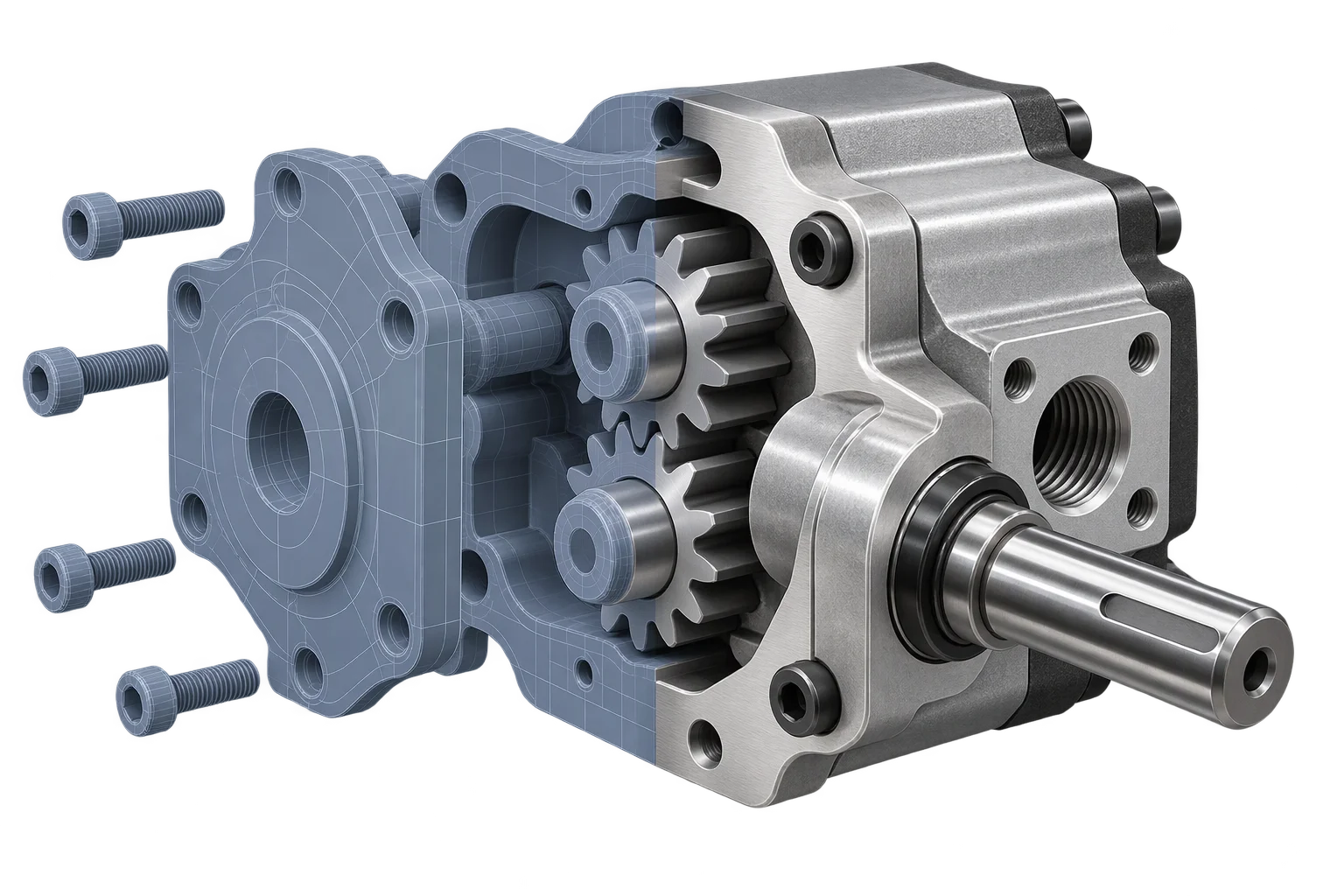
Engineering CAD to web-ready 3D conversion
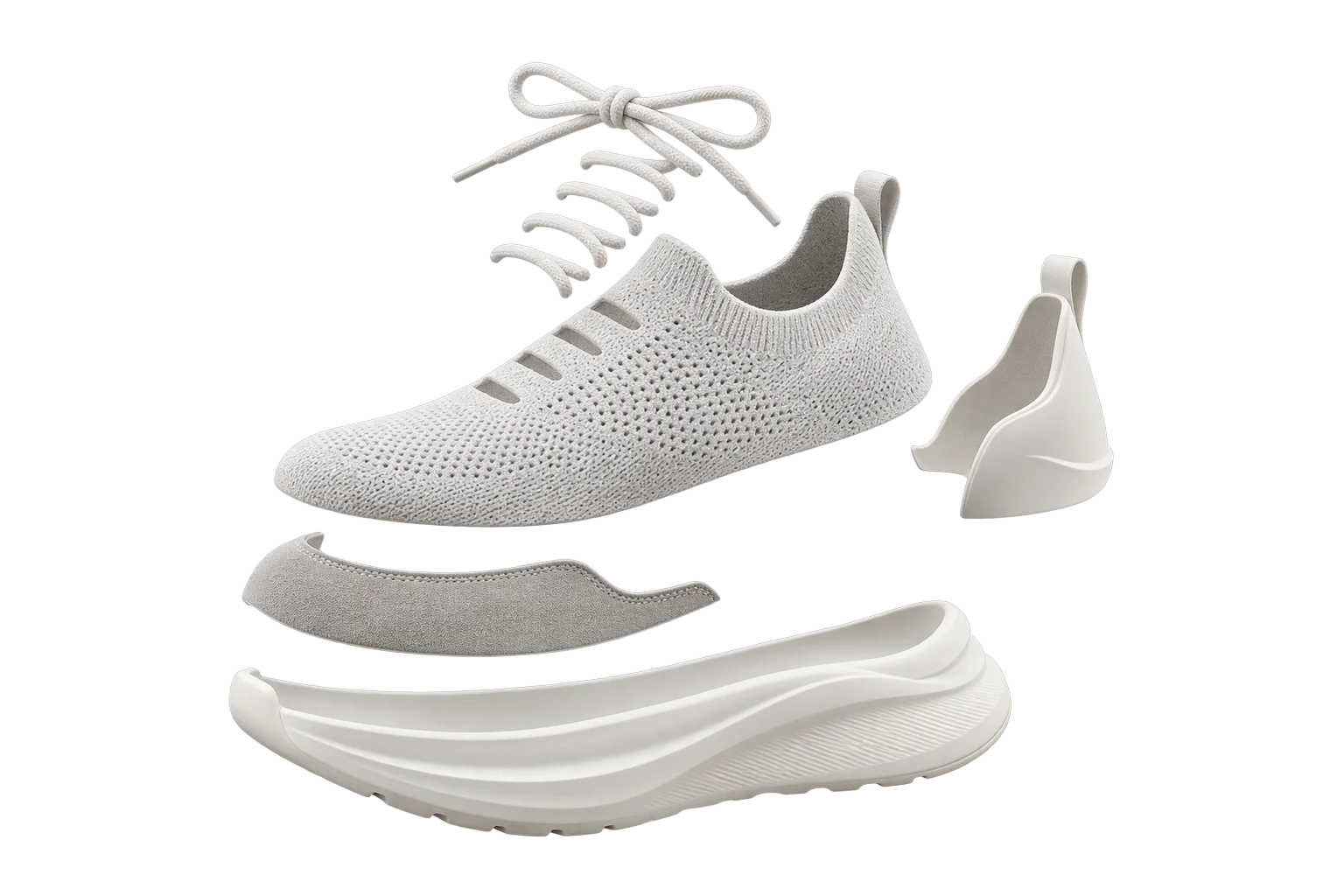
Split one 3D model into customizable parts
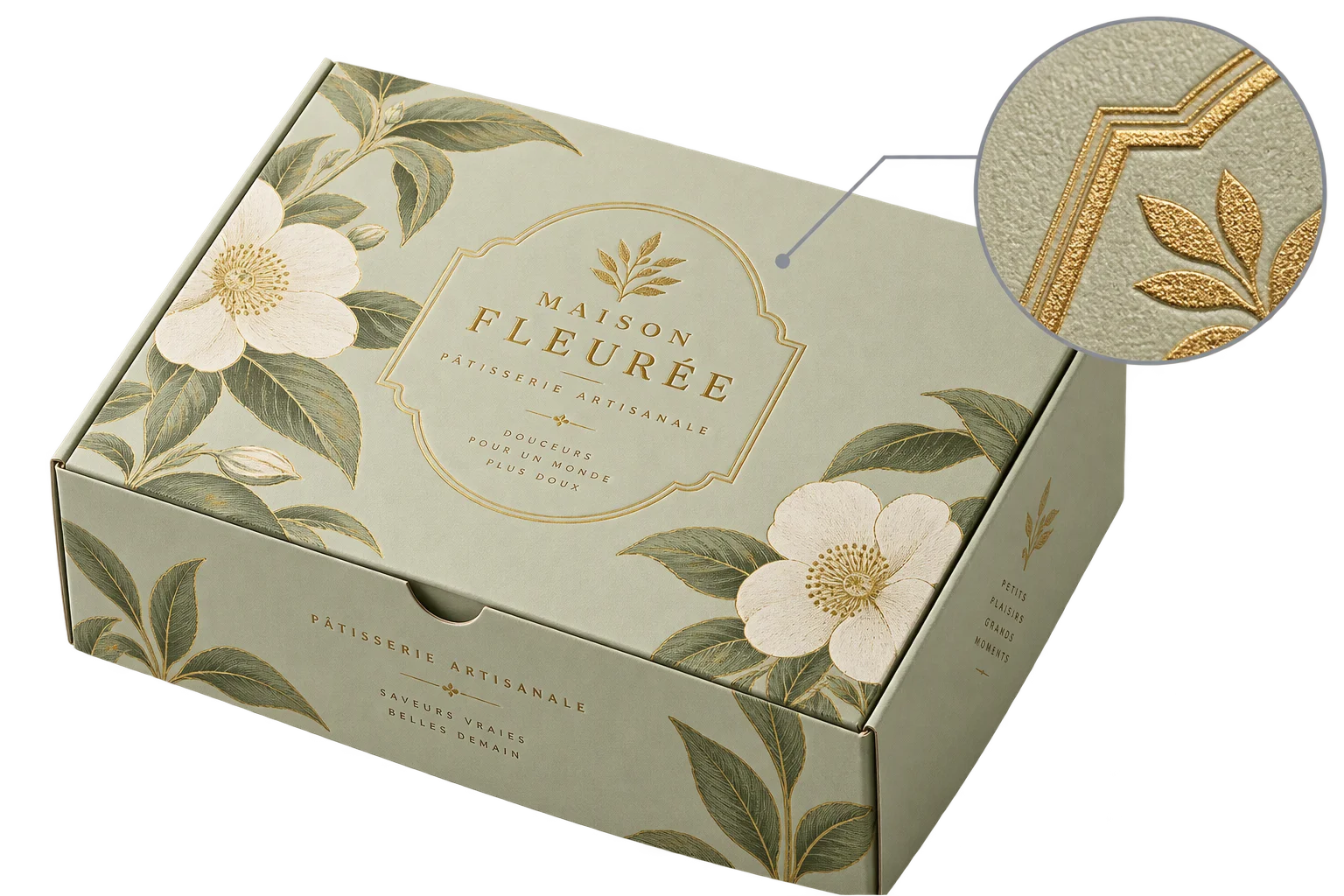
Browser-rendered 4K and 8K product proof exports