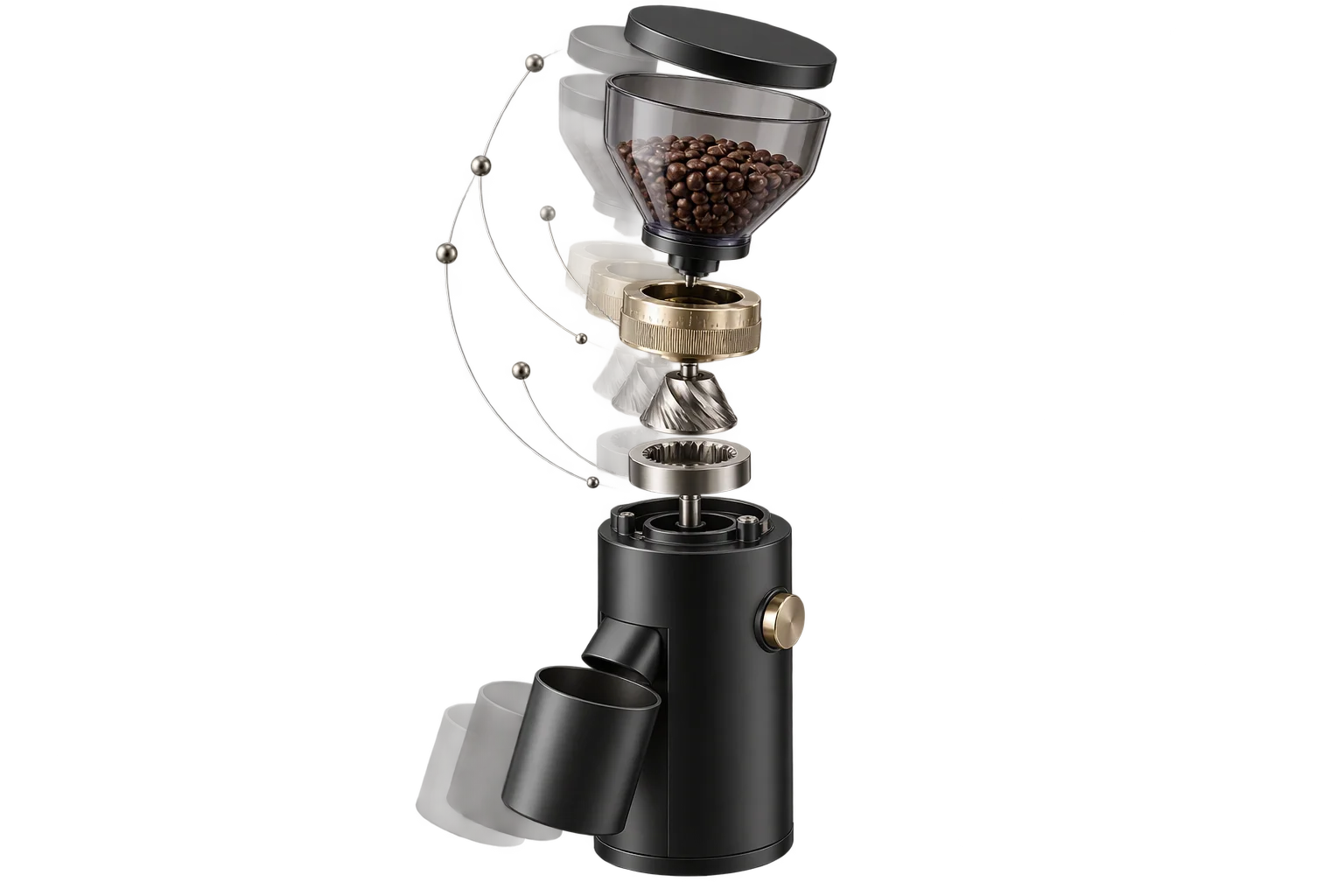
Engineering CAD to web-ready 3D conversion
Engineering exports from SolidWorks, Inventor, Rhino, or Fusion often arrive with hundreds of fragmented fasteners, duplicate material slots, and missing texture coordinates. Aircada's cloud conversion pipeline ingests standard 3D exports, merges parts by color and material similarity, extracts editable PBR materials, and compresses geometry for fast mobile storefront loading.
Why raw engineering exports stall browser viewports
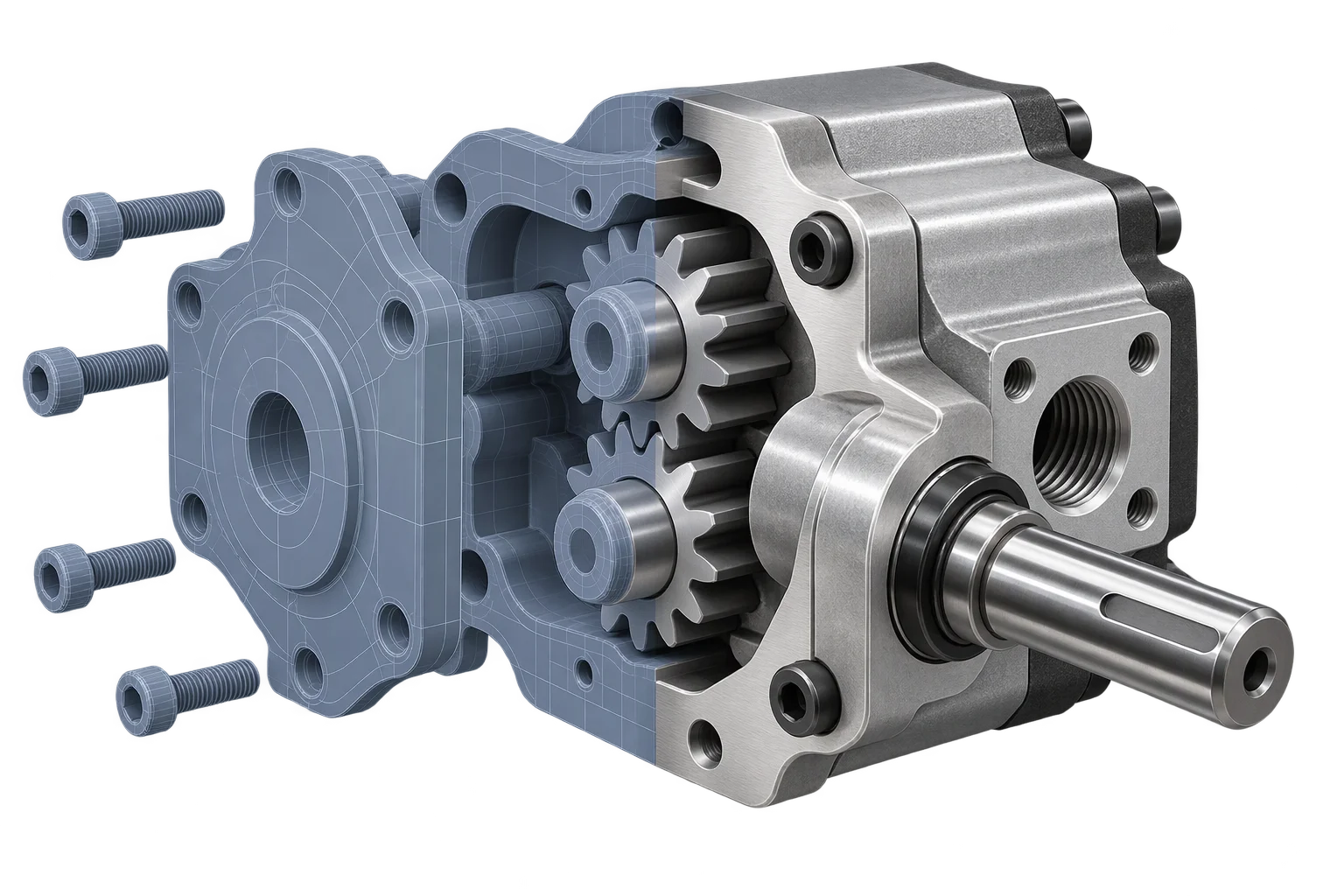
Manufacturers already hold accurate 3D geometry for every product they build in SolidWorks, Inventor, Rhino, or Fusion. Export those assemblies to FBX, OBJ, or STL and drop them straight onto a storefront, however, and two bottlenecks appear immediately. First, engineering assemblies split every bolt, gasket, bracket, and housing face into hundreds of tiny sub-objects with dozens of near-identical gray or chrome material slots, multiplying GPU draw calls until mobile browsers stutter. Second, raw mechanical exports frequently lack clean UV texture coordinates and embed unoptimized textures that bloat page loads.
Aircada removes manual 3D cleanup with a cloud conversion worker built into the Studio 3D upload workflow. Teams export their assembly from their CAD tool into a standard 3D interchange format (.glb, .gltf, .fbx, .obj with .mtl, .stl, .usdz, or .blend) and pick one of three upload strategies right inside Studio.
Material consolidation, hierarchy preservation, and storefront readiness
During cloud processing, Aircada separates multi-material meshes into clean single-material zones, merges duplicate untextured colors within a configurable similarity tolerance (0.00 to 0.50, defaulting to 0.22), and keeps textured parts separate unless they reference the exact same image. Static parts sharing a parent group and material join into a single draw call, while animated, rigged, or parent-bearing assemblies stay untouched so hinged doors, moving parts, and exploded views keep working.
The ingestion pipeline also converts source collections and empty parent groups into editable Studio layers, bakes modeling modifiers and real-world scale, extracts full PBR material properties and texture channels (base color, roughness, metalness, normal, bump, displacement, ambient occlusion, clearcoat, sheen, transmission, and emissive), and compresses every exported sub-mesh with level-10 Draco geometry compression. In production, Cinch Gaming delivers 78 optimized GLB controller sub-parts across its unified PlayStation and Xbox Shopify configurator, giving mobile and desktop shoppers instant finish swaps on their way to checkout.
From fragmented engineering parts to clean configurable zones
See how automated material merging consolidates draw calls while keeping customizable parts and scene layers intact.
Hundreds of fragmented sub-meshes and duplicate materials
A raw mechanical FBX, OBJ, or STL export arrives with every washer, o-ring, and housing face as its own node, duplicated color slots, and missing UV coordinates for wood, carbon, or brushed-metal finishes.
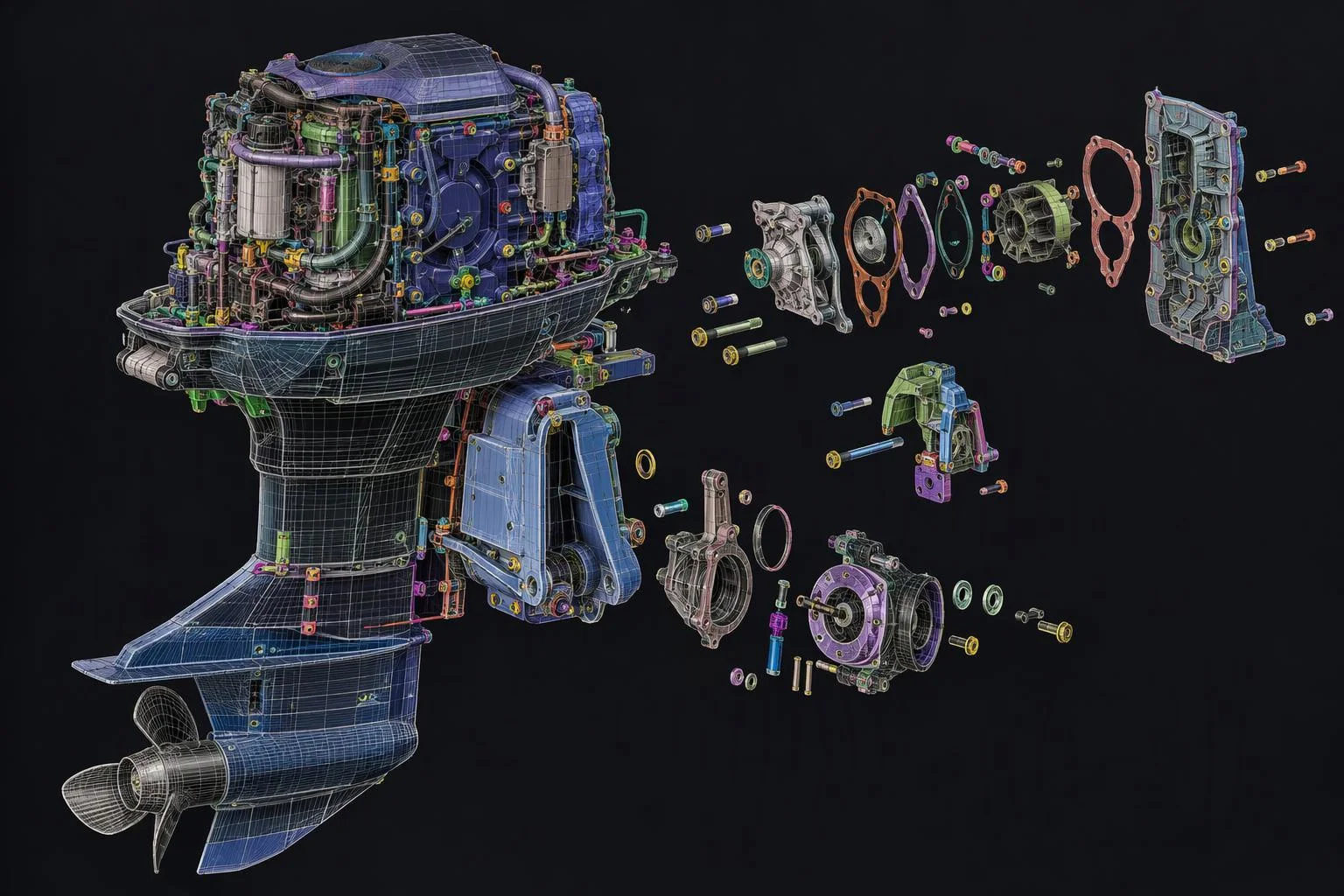
Hundreds of tiny fragmented mesh nodes multiply mobile GPU draw calls
Duplicate material colors and missing UVs block live PBR finish swaps
Grouped by material with extracted PBR slots and Draco compression
Aircada splits multi-material slots, consolidates matching colors within your chosen tolerance, preserves parent layers, and outputs Draco-compressed GLB sub-meshes ready for live customization.
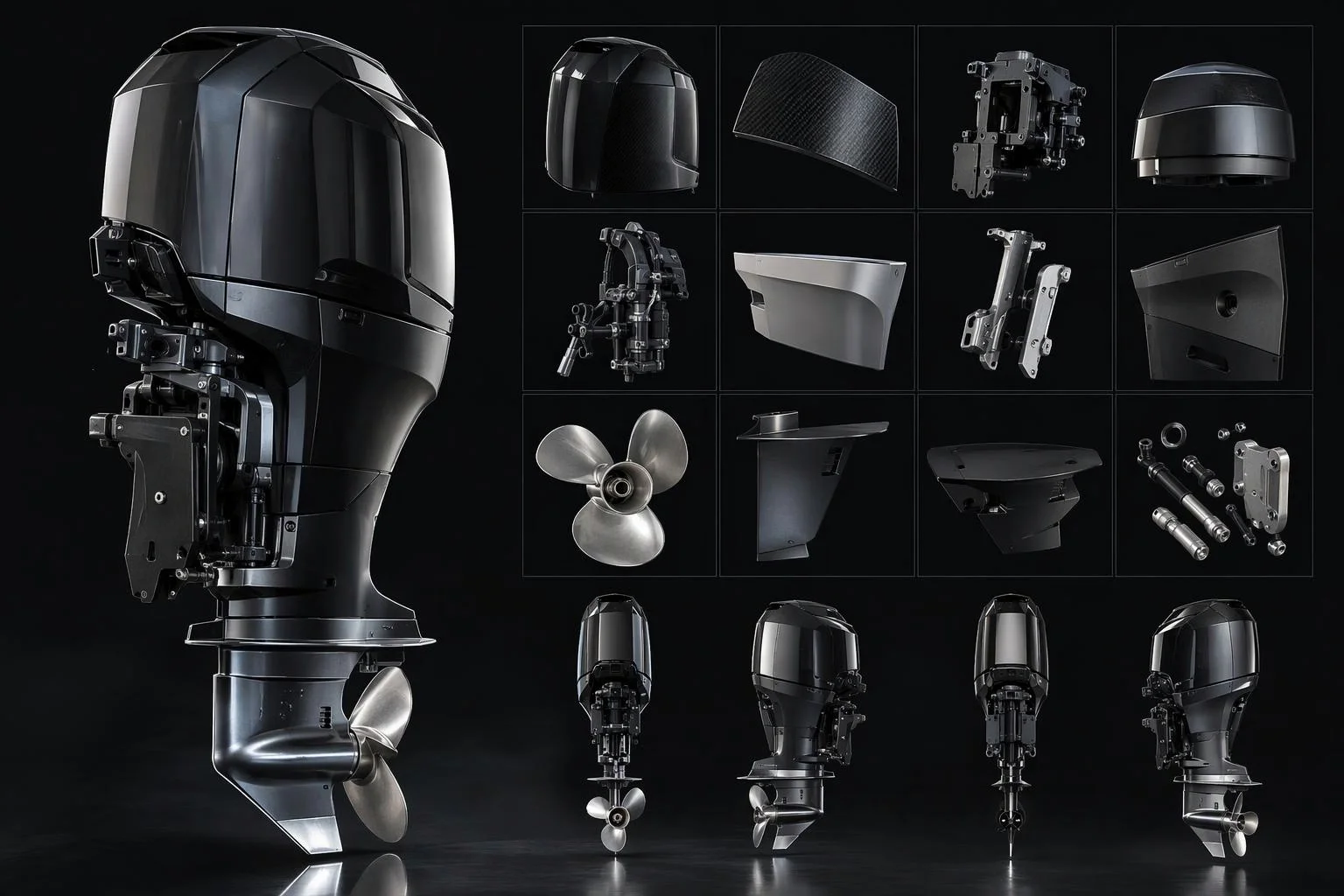
Consolidates draw calls into logical material zones (up to 150 sub-meshes)
Extracts editable PBR properties and applies level-10 Draco geometry compression
How uploaded 3D exports become interactive storefront assets
Inside Aircada's cloud conversion worker from file validation and material grouping to Draco-compressed delivery.
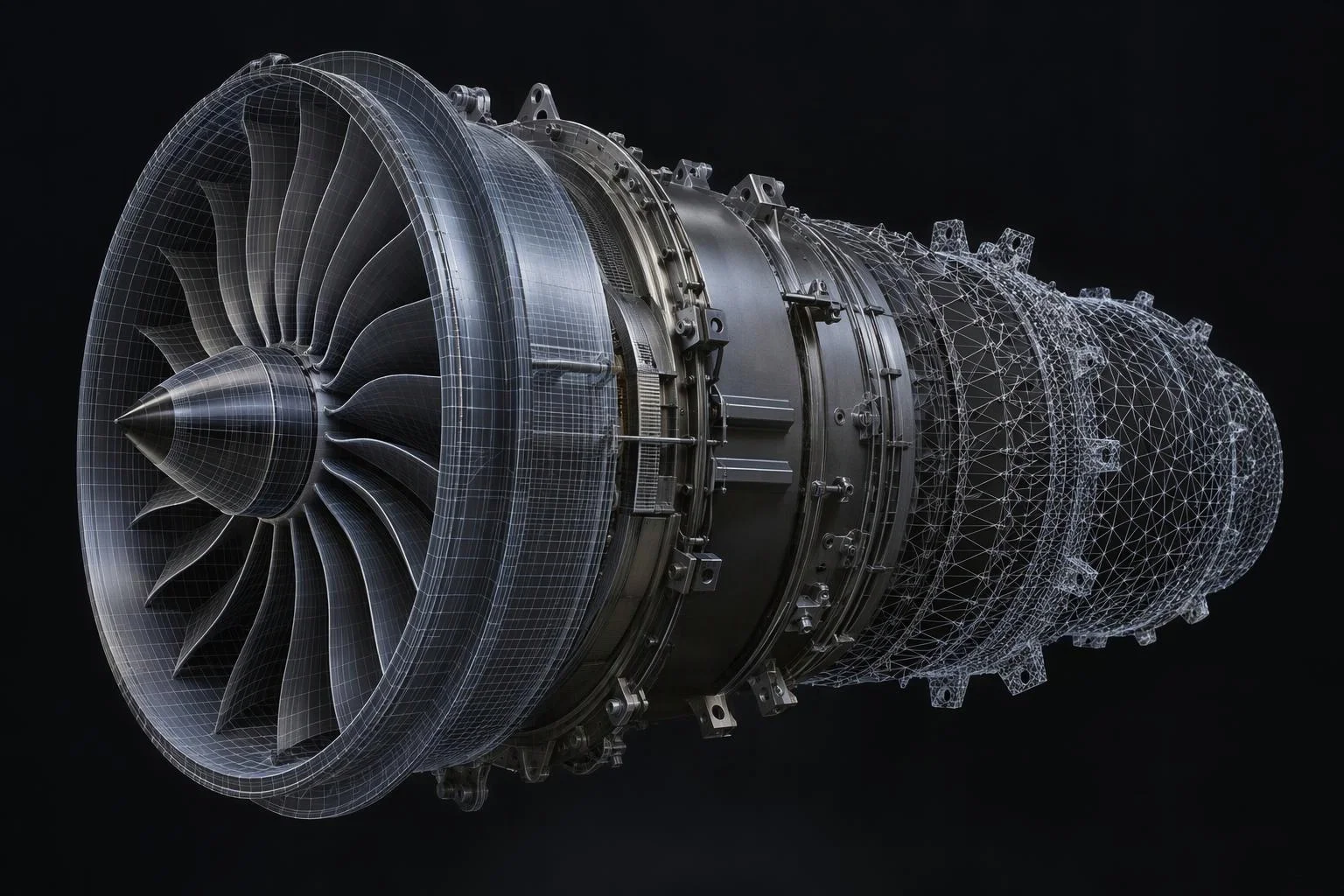
Import 3D interchange files and preserve layer hierarchy
After security scanning and plan-quota checks, the cloud worker imports your .glb, .gltf, .fbx, .obj (with .mtl), .stl, .usdz, or .blend assembly, converts collections and parent groups into Studio layers, bakes modifiers, and normalizes world scale.
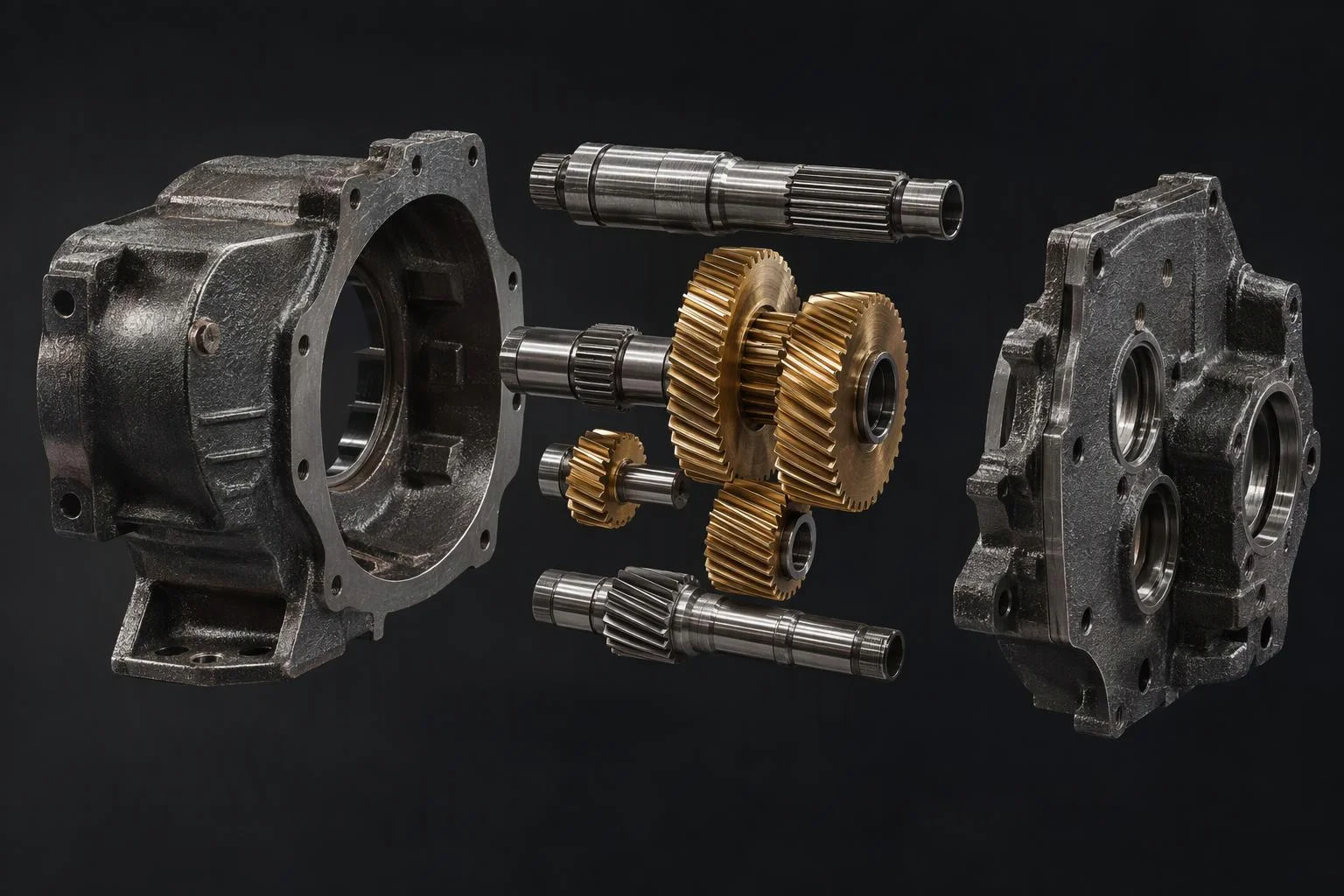
Group sub-meshes by material and RGB color tolerance
Multi-material meshes split into single-material zones before the processor clusters untextured materials within your configured RGB color tolerance (default 0.22). Static parts sharing a parent and material merge cleanly, while textured, rigged, and animated parts stay protected.
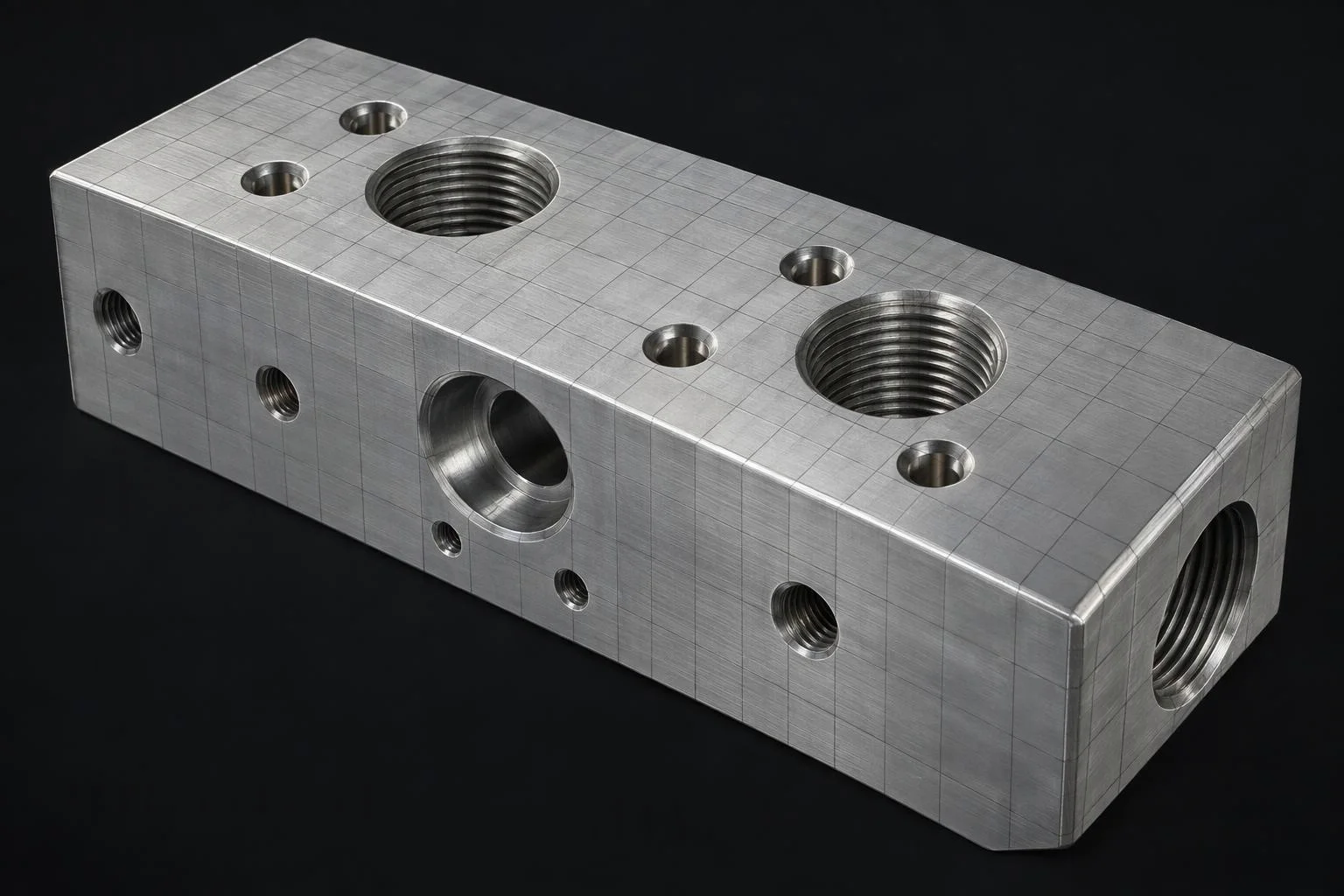
Extract PBR materials, unwrap missing UVs, and apply Draco
The pipeline extracts PBR material channels into editable Studio master materials, runs automated Smart UV projection on any geometry lacking texture coordinates, renders a preview thumbnail, and exports Draco level-10 compressed GLB files.
| Setting / Capability | Default / Supported Options | Pipeline Behavior |
|---|---|---|
| Supported 3D Input Formats | GLB, glTF, FBX, OBJ (+ MTL), STL, USDZ, Blend | Export from SolidWorks, Inventor, Rhino, or Fusion into any supported interchange format and upload directly into Studio. |
| Smart Optimized (Default) | Merge by Material (Color Tolerance 0.22) | Splits multi-material parts, merges untextured colors within a 0.00 to 0.50 RGB tolerance, and keeps animated or parented assemblies intact. |
| Full Breakdown | All Meshes (Up to 150 parts) | Preserves every individual mesh and animation track separately for independent part motion, exploded views, or visibility toggles. |
| Single Unit | Unified Single Mesh | Exports the entire assembly as one GLB draw call for static accessories, props, or non-configurable components. |
| PBR Extraction & Sharing | Enabled by default | Extracts base color, roughness, metalness, normal, bump, displacement, AO, clearcoat, sheen, transmission, and emissive channels into shared Studio materials. |
| Geometry Compression | Draco Level 10 (with automatic fallback) | Quantizes and compresses vertex buffers for fast mobile downloads, automatically falling back to standard GLB if a mesh fails Draco encoding. |
Responsibility Tiers
- 1 Native Aircada layer
- 1 Aircada Configuration layer
- 1 Custom Implementation layer
- 1 External layer
Responsibility Boundaries Across CAD-to-Web Conversion
How Aircada's cloud 3D processor, Studio upload settings, and upstream engineering CAD exports divide responsibilities.
Cloud ingestion, smart material grouping, PBR extraction & Draco GLB export
- Native Aircada
- Automated file scanning, hierarchy-to-layer mapping, 0.22-default color-tolerance merging, PBR channel extraction, Smart UV fallback for unmapped meshes, thumbnail rendering, and level-10 Draco GLB export (120-second worker budget).
Upload preset selection, color tolerance slider & hierarchy toggles
- Aircada Configuration
- Configured in Aircada Studio's 3D Upload modal (Smart Optimized, Full Breakdown, or Single Unit, plus color similarity tolerance from 0.00 to 0.50, modifier baking, and material sharing).
Post-upload PBR finish tuning & interactive option binding
- Custom Implementation
- Assigning brand-specific PBR finishes, connecting customizable sub-meshes to option pickers, and wiring part animations.
Exporting interchange meshes & distinct CAD appearance colors
- External
- Exporting from SolidWorks, Inventor, Rhino, or Fusion into FBX, OBJ, STL, USDZ, GLB/glTF, or Blender (
.blend), and assigning distinct material colors to parts that should remain separately customizable under Smart Optimized mode.
Frequently Asked Questions
Which 3D and CAD export formats can we upload directly into Aircada Studio?
.glb, .gltf, .fbx, .obj (with companion .mtl and texture files), .stl, .usdz, and .blend files. If your engineering team works in native CAD tools like SolidWorks, Inventor, Rhino, or Fusion, export your assembly to FBX, OBJ, STL, USDZ, or GLB first and upload it straight into Studio.How does Smart Optimized mode know which CAD parts should be grouped together?
0.22, adjustable from 0.00 to 0.50). Parts sharing the same parent group and matching material merge into one configurable zone, while textured, rigged, or animated parts are never merged together.What if our exported mechanical model has no UV maps for applying wood or brushed-metal textures?
When should we choose Full Breakdown instead of Smart Optimized?
Does the conversion pipeline compress file sizes for mobile shoppers?
Decompose uploaded 3D assemblies into independent scene units
Split multi-part GLB files into individually addressable sub-meshes backed by a shared, reference-counted GPU cache.
Related capabilities
Explore the adjacent capabilities and integrations that pair with this workflow.
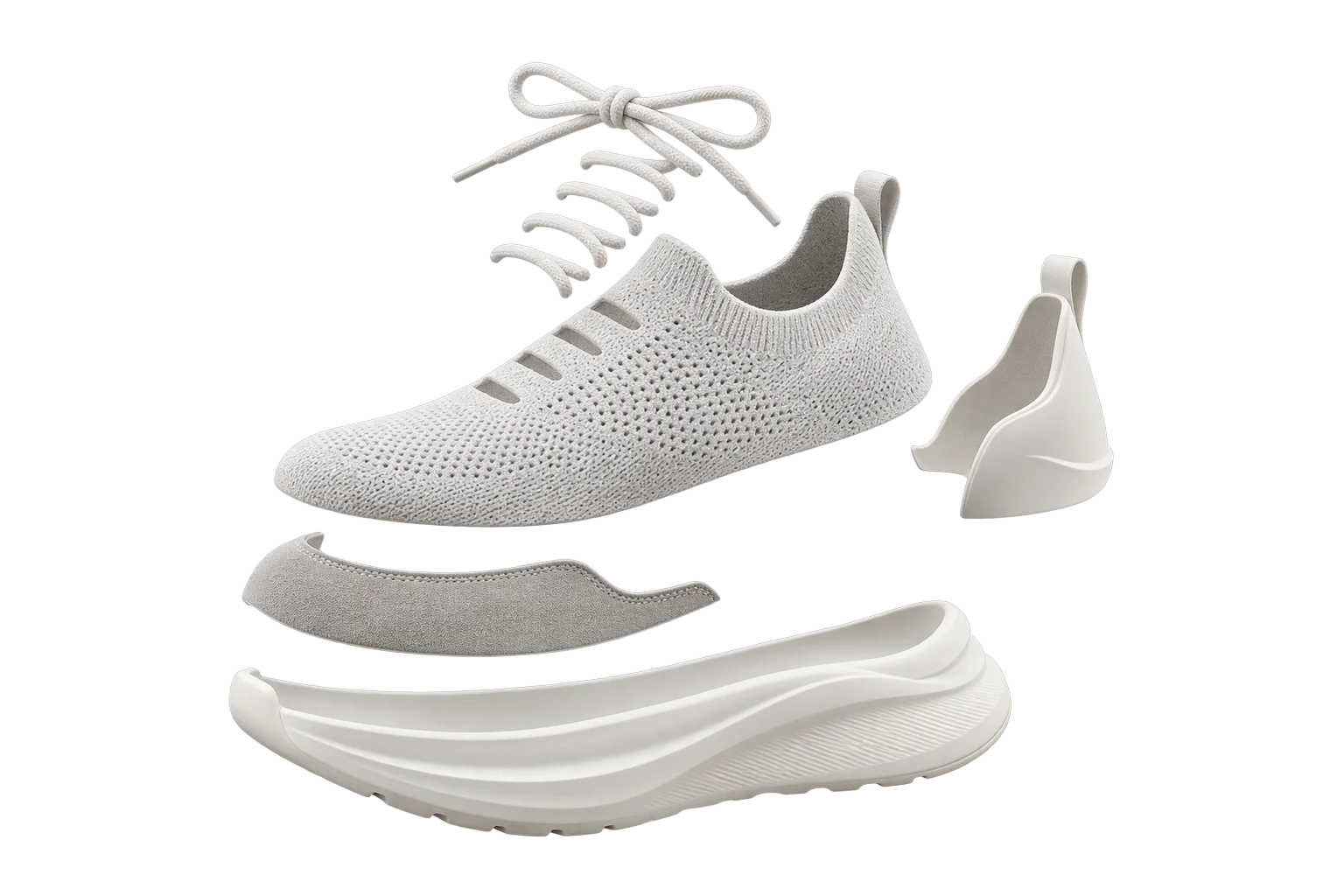
Split one 3D model into customizable parts
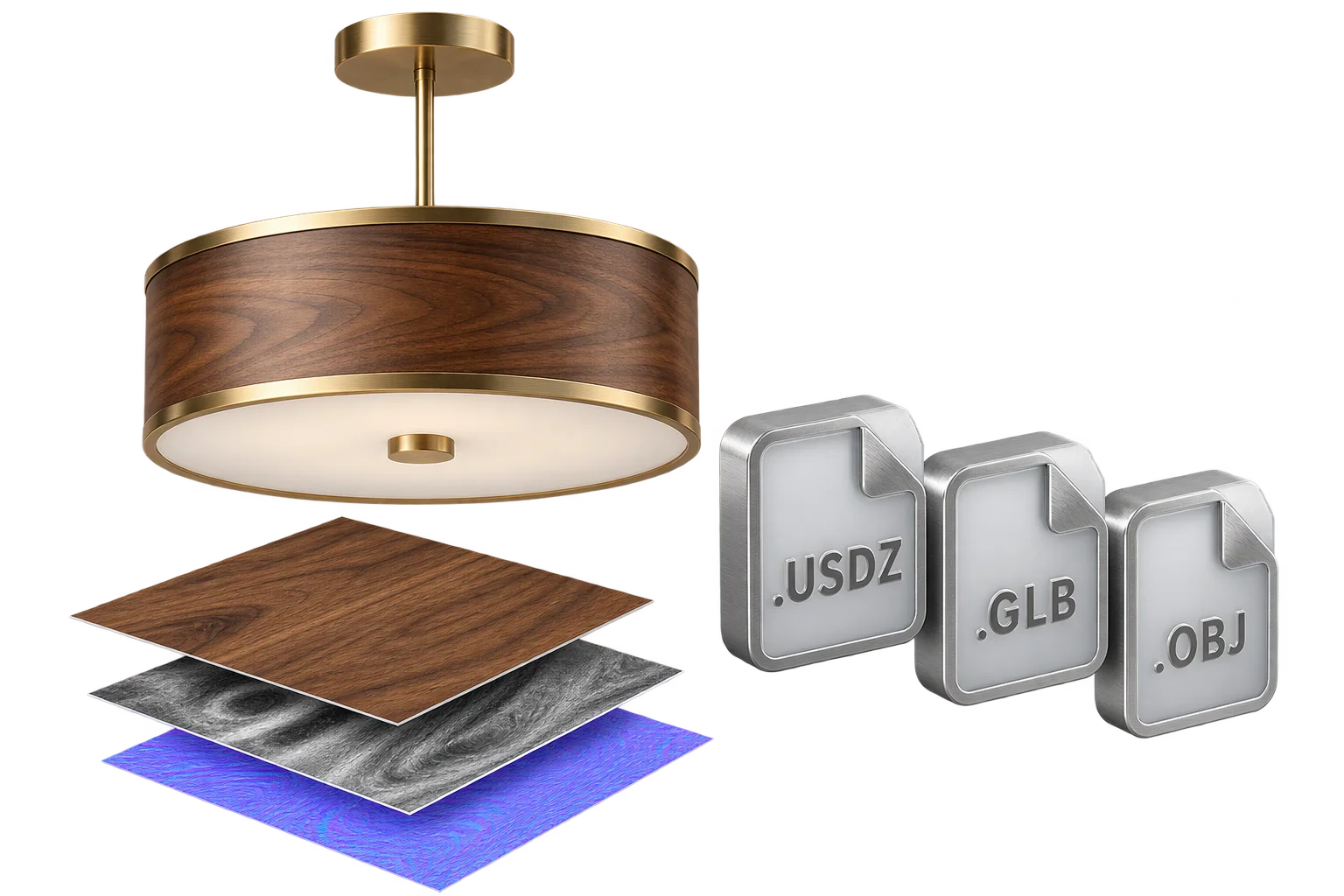
Texture-baked 3D exports to USDZ, GLB, and OBJ

Browser-rendered 4K and 8K product proof exports