Fast mobile 3D mesh compression for heavy CAD
Raw engineering exports and 3D scans often weigh tens of megabytes and stall mobile browsers before a shopper ever touches the configurator. Aircada compresses 3D models automatically on upload with fallback safety and includes a live Studio GLB optimizer for polygon reduction, seam welding, and instant before-and-after file size and mobile memory telemetry.
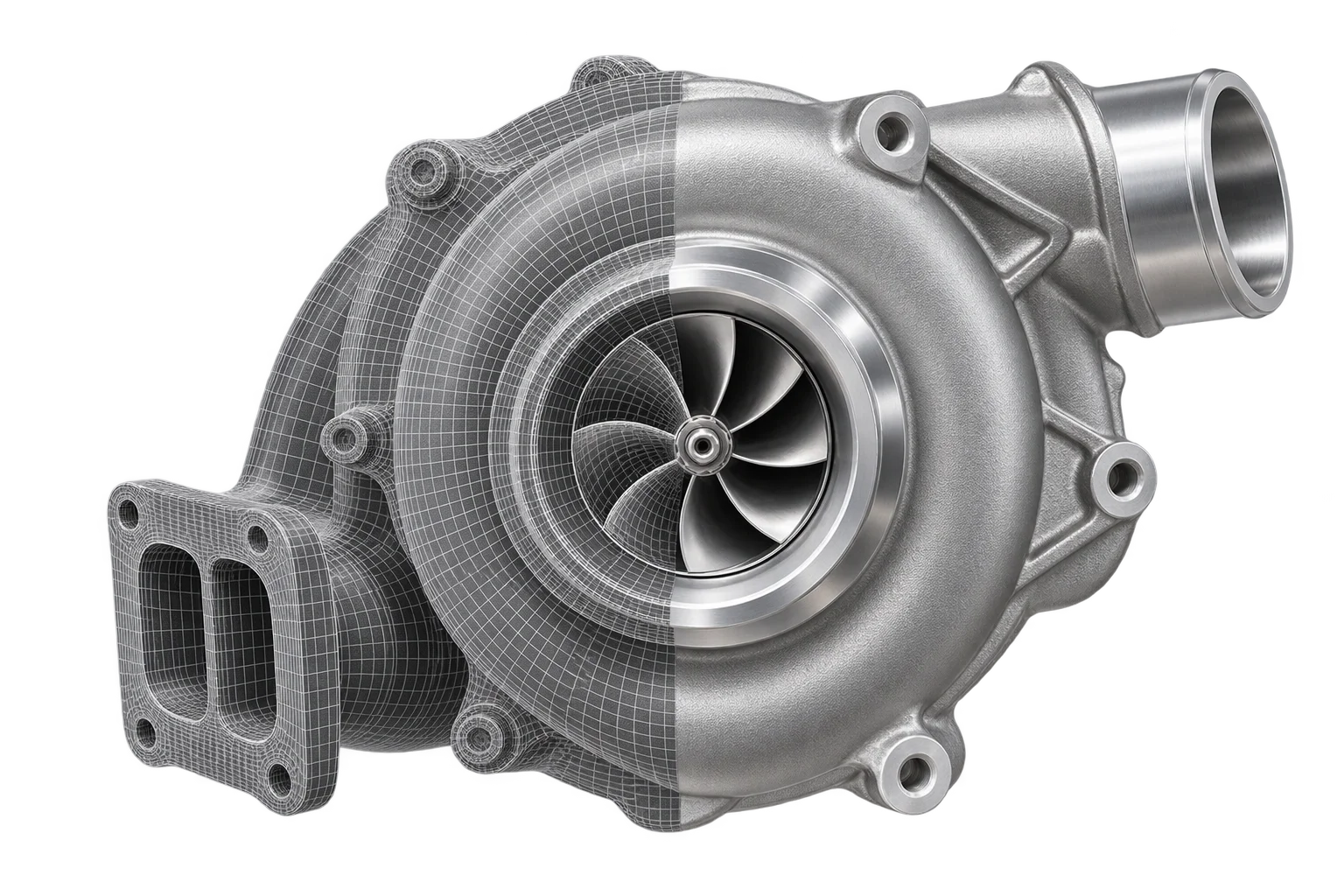
Heavy CAD tessellation and mobile conversion drop-off
Engineering CAD assemblies and photogrammetry scans are built for manufacturing tolerances, not cellular connections. A single raw CAD export can carry hundreds of thousands of redundant triangles, duplicated vertices, and fragmented sub-parts that stall page loads and push mobile browser tabs past memory limits.
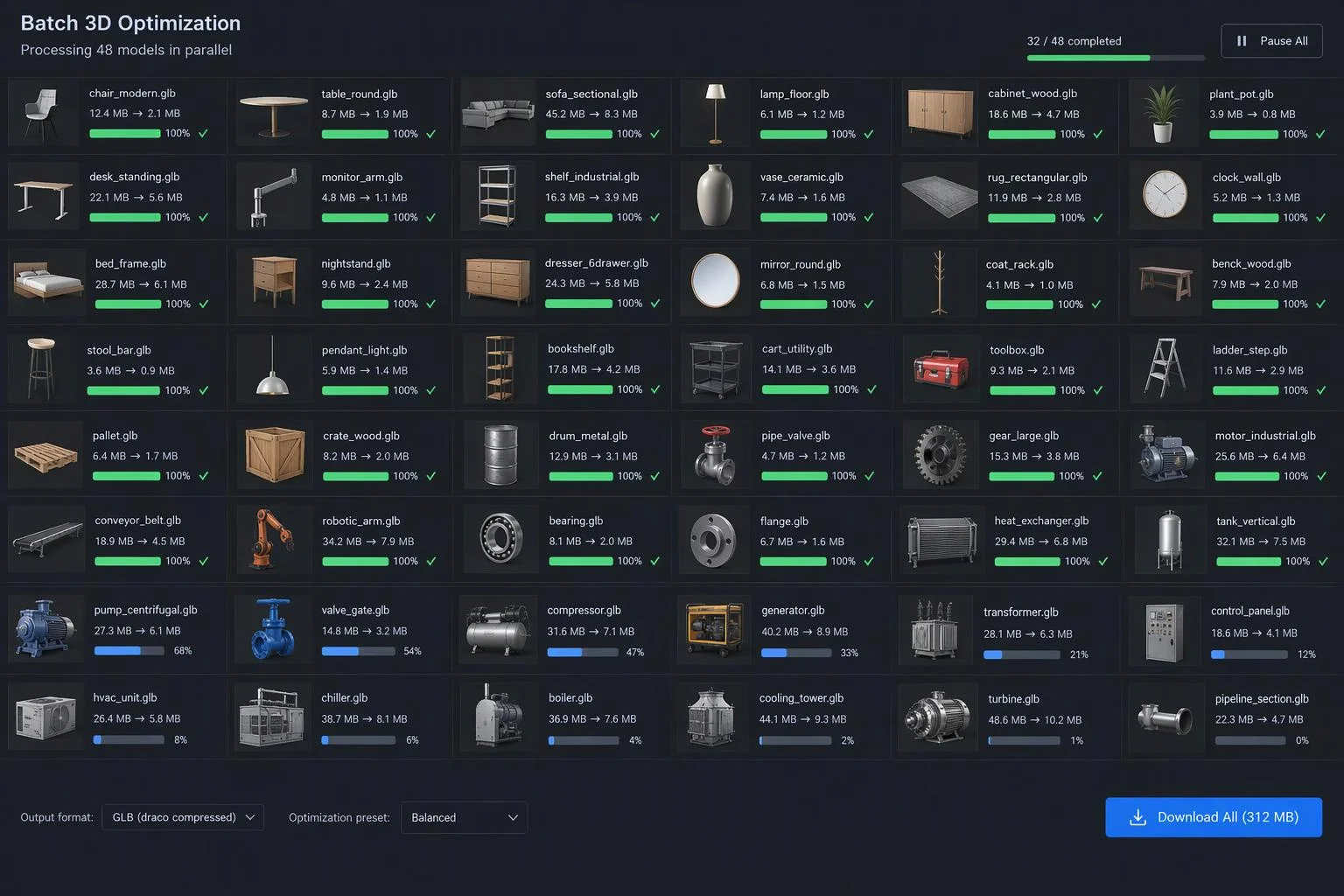
Aircada addresses geometry weight at two stages. First, during 3D model upload, the ingestion pipeline consolidates duplicate materials (within a configurable 0.22 color tolerance), applies Smart Merge by Material automatically on assemblies over 150 parts, and exports Draco-compressed GLB files (Level 10 default) with automatic fallback if a non-manifold mesh resists compression.
Second, inside Aircada Studio's Media Optimization panel, teams can fine-tune any 3D part in the browser using polygon simplification, vertex welding, and Draco Edgebreaker or Sequential encoding. Faster first-render times keep mobile shoppers actively configuring on Shopify and headless product pages instead of bouncing before checkout.
Cut redundant geometry without losing surface curvature
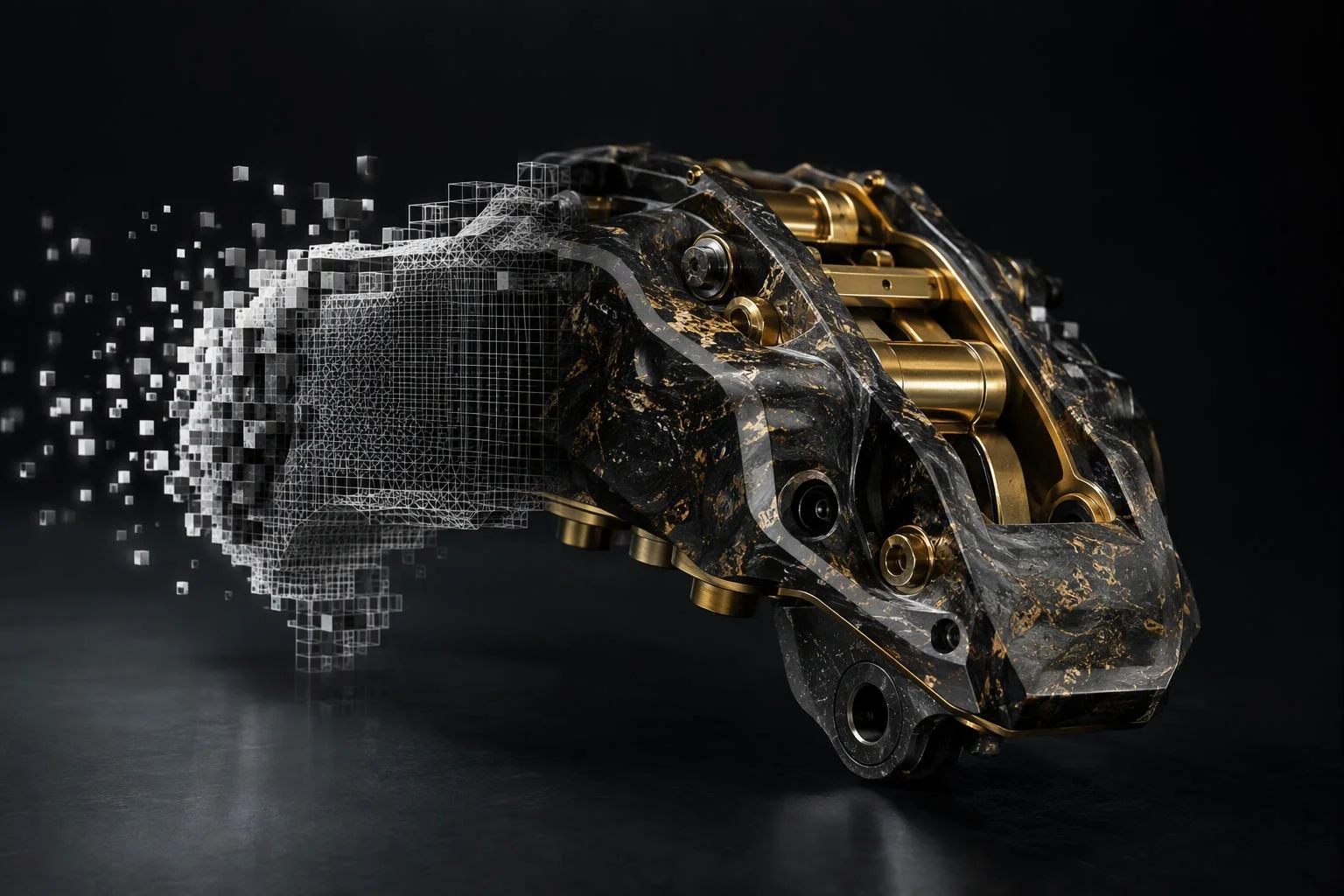
Illustrative comparison of an unoptimized engineering CAD export against a simplified, welded, and Draco-compressed production GLB.
Raw CAD export (dense tessellation, heavy mobile payload)
Unoptimized engineering exports ship dense flat-face tessellation, unwelded seam vertices, and uncompressed binary vertex buffers that slow initial mobile downloads.
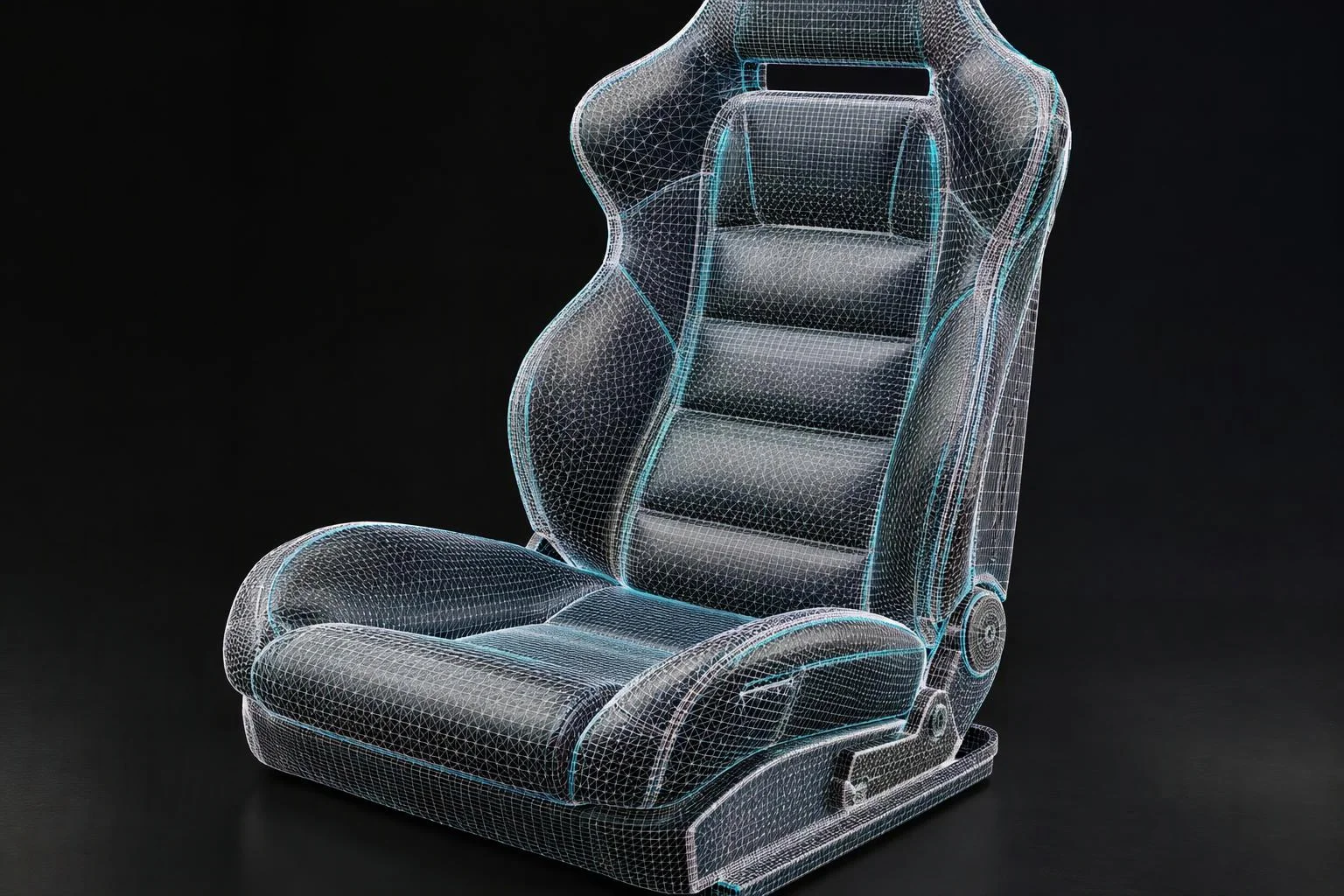
Dense triangle counts across flat and gently curved surfaces inflate GPU VRAM usage
Duplicate vertices and unmerged sub-parts multiply mobile draw calls
Uncompressed binary buffers stall product-page loads on cellular connections
No visibility into per-asset disk size, vertex count, or estimated GPU memory
Simplified, welded, and Draco-encoded GLB
Studio polygon simplification, vertex welding, and Draco Edgebreaker compression shrink wire weight and GPU memory while preserving crisp product silhouettes.
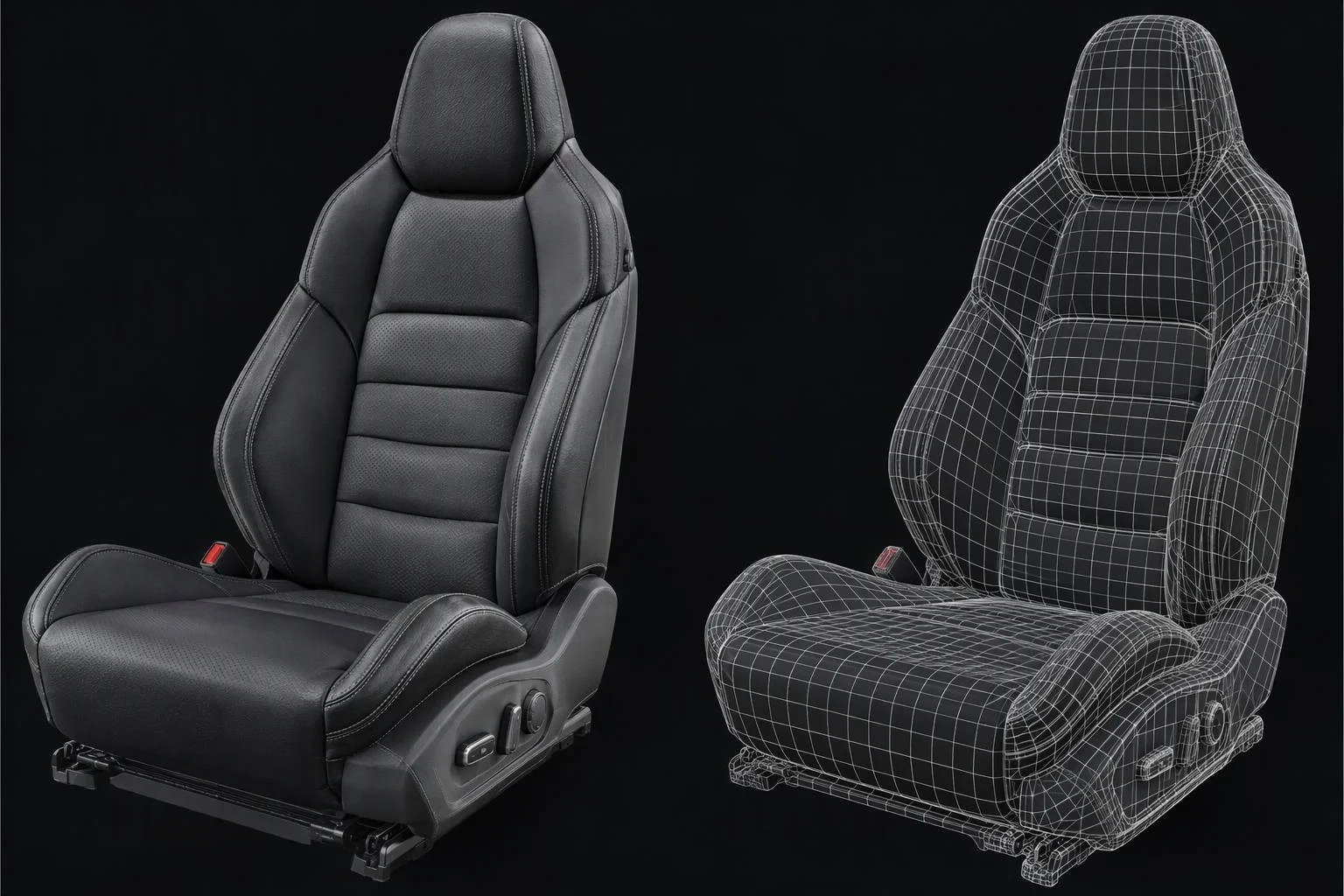
Configurable Simplify Ratio (0 to 1) and Error Tolerance (0 to 1) preserve bevels and curved contours
Vertex Welding merges duplicate vertices cleanly prior to bitstream encoding
Draco Edgebreaker or Sequential encoding compresses positions, normals, and UVs for fast CDN delivery
Side-by-side Studio telemetry reports exact Disk Size, GPU VRAM, Draw Calls, Vertices, and Primitives deltas
How Aircada shrinks 3D geometry from upload to Studio
THREE-STAGE GEOMETRY PIPELINE
Tune simplification ratio and error tolerance live in Studio
Open any GLB part in Studio's Media Optimization panel to enable mesh simplification with a target Simplify Ratio slider (0 to 1, default 0.5) and geometric Error Tolerance slider (0 to 1, default 0.01). Coplanar and low-curvature triangles collapse first while preserving curved silhouettes, machined bevels, and UV layout.
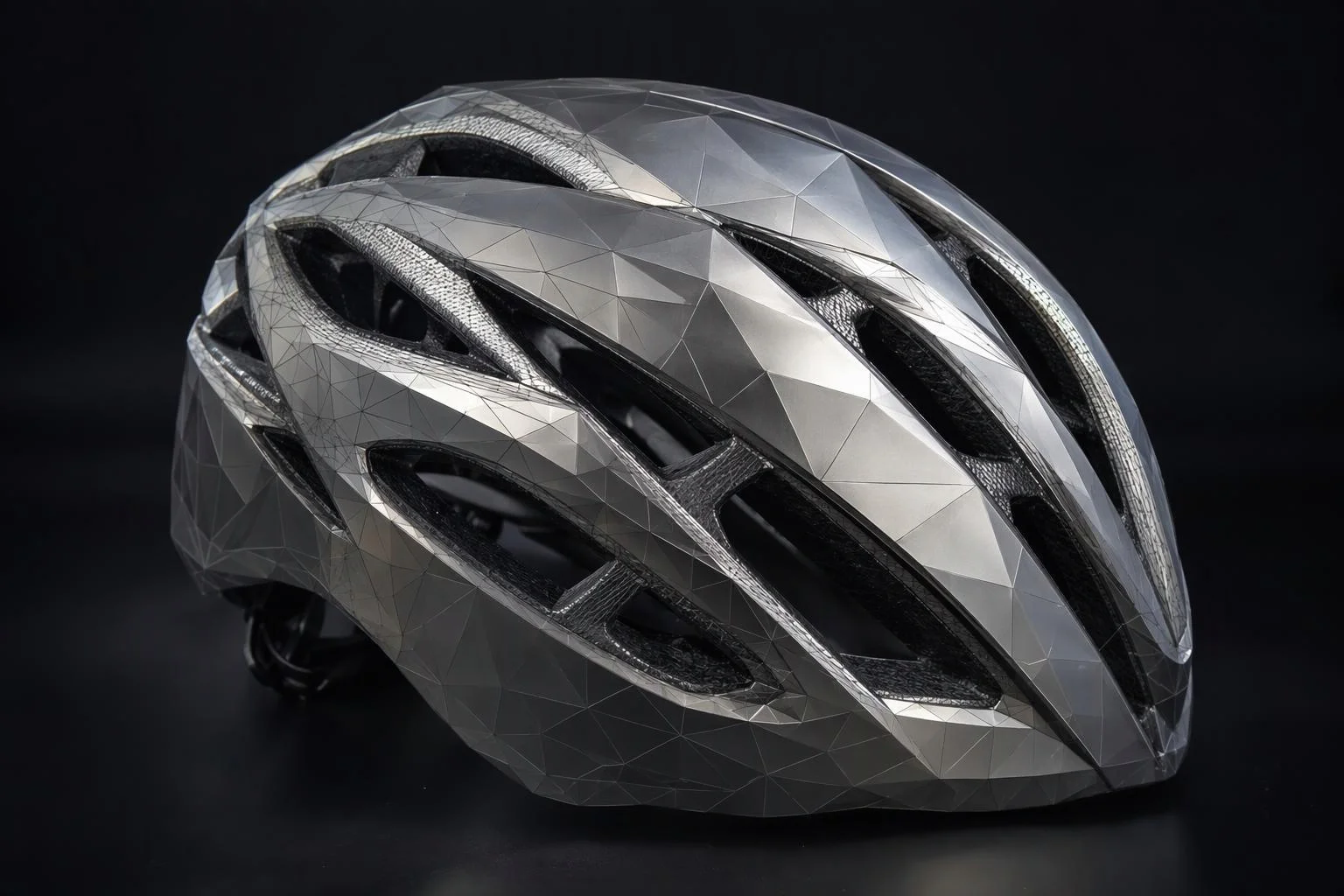
Weld duplicate vertices and encode with Draco Edgebreaker
Enable Vertex Welding alongside Google Draco compression using either Edgebreaker (default for maximum compression) or Sequential encoding. Vertex positions, surface normals, and UV coordinates quantize into a compact bitstream that streams rapidly over mobile networks.
Verify exact byte and VRAM savings and refresh every unit
The Studio optimizer displays an attribute-by-attribute delta table covering File Size, GPU VRAM, Draw Calls, Vertices, and Primitives, plus clickable links to every scene unit using that asset. Saving immediately updates every referencing unit in your workspace while keeping the original file path intact for one-click Revert or Clone.
| Stage / Control | Verified Options & Defaults | Operational & Mobile Impact |
|---|---|---|
| Upload-Time Compression | Draco Level 10 default with automatic uncompressed GLB fallback; Smart Merge by Material auto-engaged above 150 parts; 0.22 RGB material deduplication tolerance | Prevents fragile CAD exports from failing ingestion while shrinking complex multi-part assemblies on initial upload. |
| In-Browser Polygon Simplification | Simplify toggle (default on), Simplify Ratio (0 to 1, step 0.01, default 0.5), Error Tolerance (0 to 1, step 0.01, default 0.01) | Collapses redundant coplanar faces first while protecting curved product silhouettes, machined bevels, and UV seams. |
| Vertex Welding & Draco Encoding | Vertex Welding toggle (default on); Draco Edgebreaker (default) or Sequential encoding; configurable position, normal, texcoord, and color quantization | Eliminates duplicate seam vertices and packs geometry into compact binary streams for rapid cellular downloads. |
| Live Studio Telemetry | Side-by-side Original vs. Optimized deltas for File Size, estimated GPU VRAM, Draw Calls, Vertices, Primitives, Meshes Size, and Textures Size | Gives teams objective byte and memory proof before publishing to mobile storefronts instead of guessing. |
| Non-Destructive Propagation | One-click Revert to preserved original file path, Clone as separate asset, and automatic cache clearing + scene-unit refresh across every referencing build | Lets teams optimize shared 3D parts safely without breaking material assignments, hierarchy transforms, or animations. |
Production safeguards built into Studio optimization
GEOMETRY SAFEGUARDS
Measured Disk Size and GPU VRAM deltas
Compare Original vs. Optimized File Size, estimated GPU VRAM, Draw Calls, Vertices, and Primitives directly inside Studio's Media Optimization panel before publishing.
Non-destructive Revert, Clone, and Draco fallback
Studio stores the original unoptimized asset path so you can revert or clone anytime, while upload-time Draco export automatically falls back to standard binary GLB if an edge-case mesh fails compression.
Live propagation across every scene usage
Optimizing a shared 3D part clears its live cache and refreshes every referencing unit across your project automatically while preserving part bindings and animation tracks.
Browser WASM optimization with zero desktop detours
Run polygon simplification, vertex welding, and Draco encoding directly inside your Studio browser tab without round-tripping assets back through Blender or external CLI tools.
Responsibility Tiers
- 1 Native Aircada layer
- 1 Aircada Configuration layer
- 1 Custom Implementation layer
- 1 External layer
Responsibility Boundaries for Geometry Optimization
How Aircada's upload compression, Studio WASM optimizer, and source 3D exports divide responsibilities.
In-browser WASM mesh simplifier, vertex welding, Draco encoding & upload fallback
- Native Aircada
- Client-side WASM simplification, vertex welding, Draco Edgebreaker/Sequential encoding, live Disk Size/GPU VRAM telemetry, automatic scene-unit refresh, and upload-time Draco Level 10 export with safe fallback.
Simplify ratio, error tolerance, Draco method & upload split mode
- Aircada Configuration
- Configured in Studio's Upload Settings (Smart Merge by Material, All Meshes, Single) and Media Optimization panel (Simplify Ratio 0 to 1, Error 0 to 1, Weld, Draco method, Revert/Clone).
Per-part visibility rules & conditional sub-mesh loading
- Custom Implementation
- Binding optimized GLB parts to option rules or modular attachment points so buyers only load the assemblies relevant to their configuration.
Exporting clean source CAD assemblies or 3D scans
- External
- Supplying source 3D geometry from SolidWorks, Rhino, Blender, or industrial 3D scanners prior to upload and Studio optimization.
Frequently Asked Questions
Will polygon simplification ruin my UV unwrap or baked textures?
How does Aircada shrink 3D file sizes without making curved products look boxy?
Can I optimize one shared 3D part without breaking scenes that already use it?
What happens if an uploaded CAD model contains tricky geometry that fails automated compression?
Pair lightweight meshes with GPU-compressed textures
Once your polygon counts are dialed in, convert heavy PNG and JPG material maps into Basis Universal KTX2 textures to keep mobile GPU memory low.
Related capabilities
Explore the adjacent capabilities and integrations that pair with this workflow.
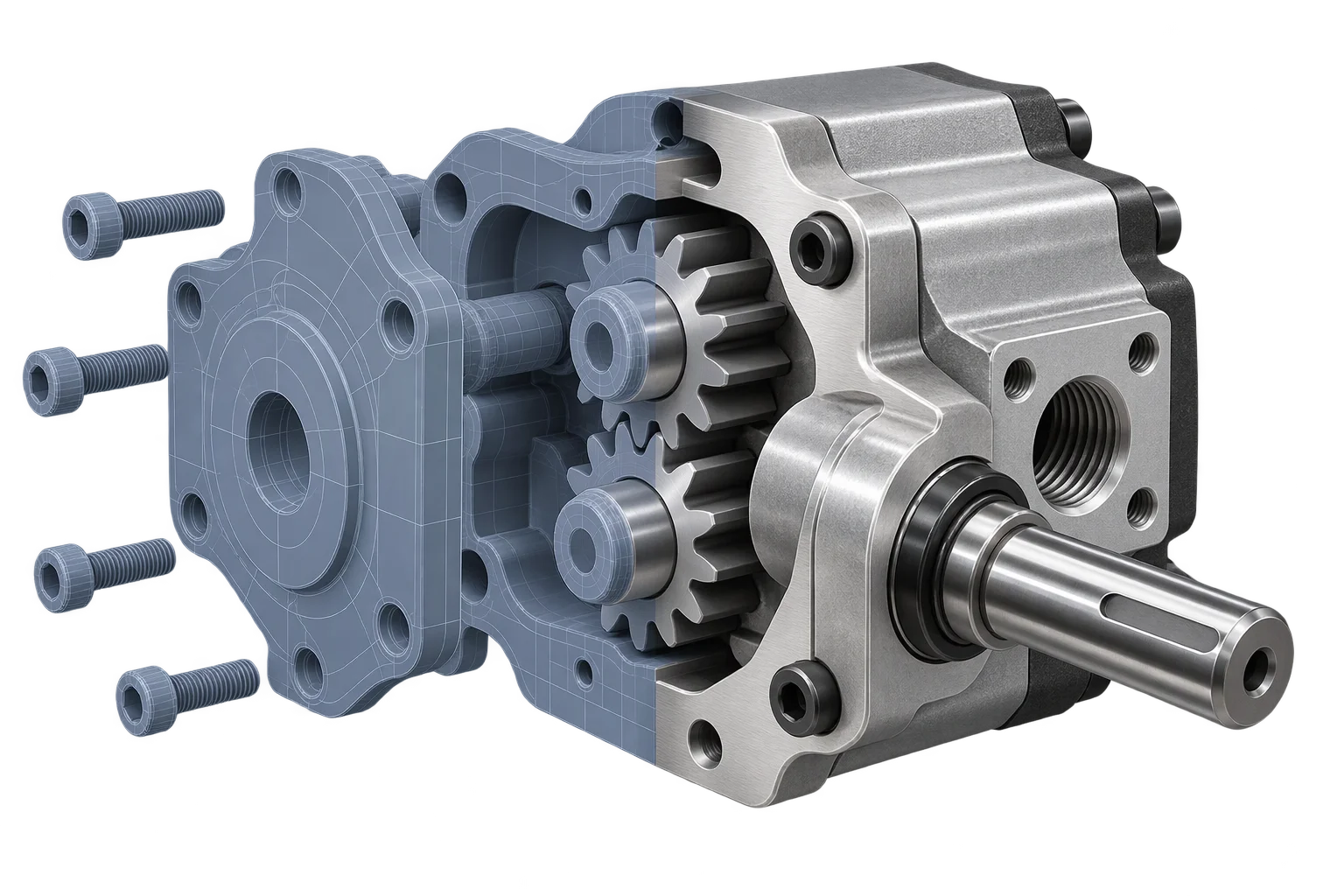
Engineering CAD to web-ready 3D conversion
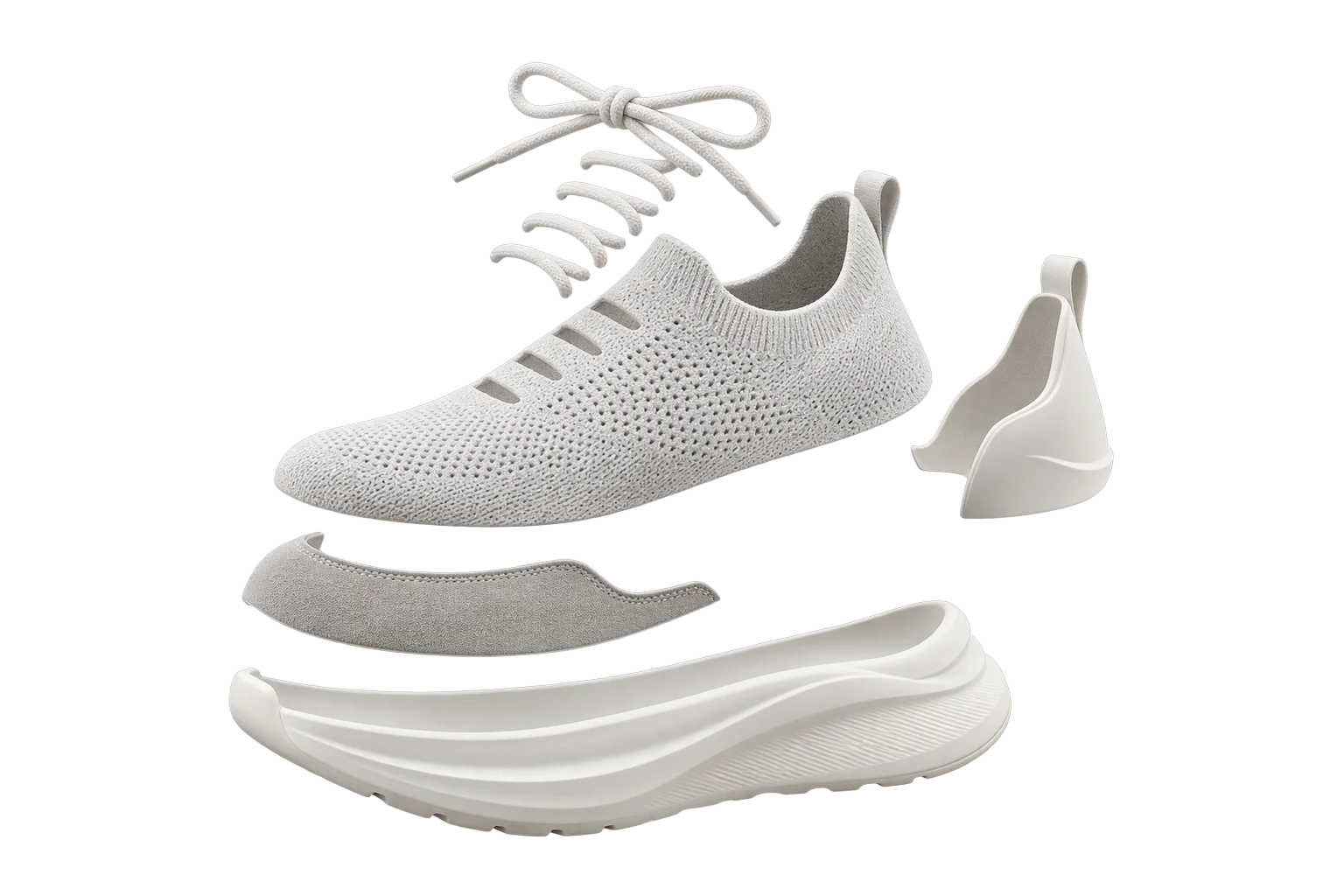
Split one 3D model into customizable parts

GPU texture compression for fast mobile 4K finishes