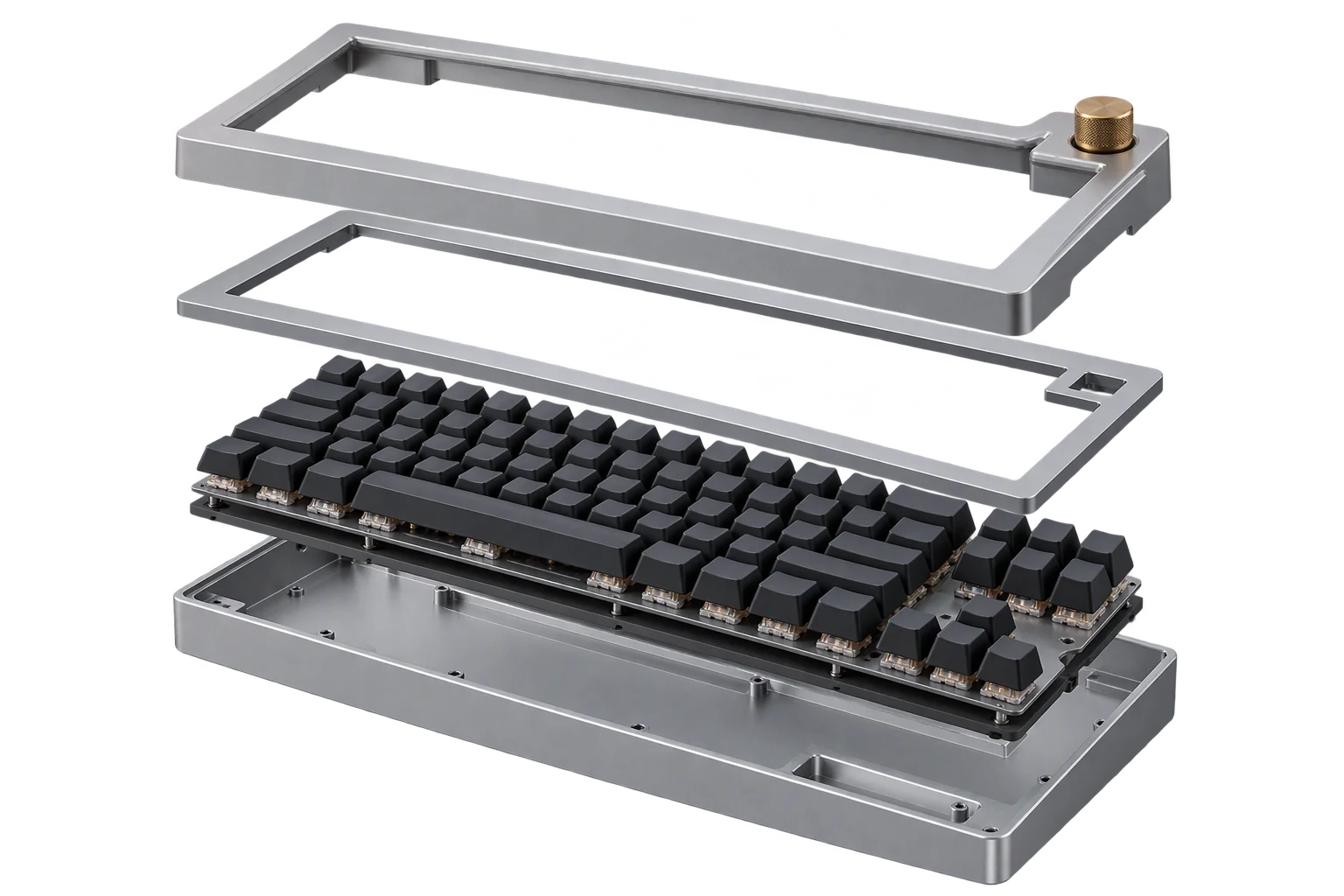
Split one 3D model into customizable parts
Uploading 25 separate 3D files for a customizable shoe or furniture piece forces the browser to run 25 network requests and lose shared assembly alignment. Aircada splits a single multi-mesh 3D upload into independent scene units that can be styled, hidden, or animated individually while sharing one cached network download and GPU buffer pool.
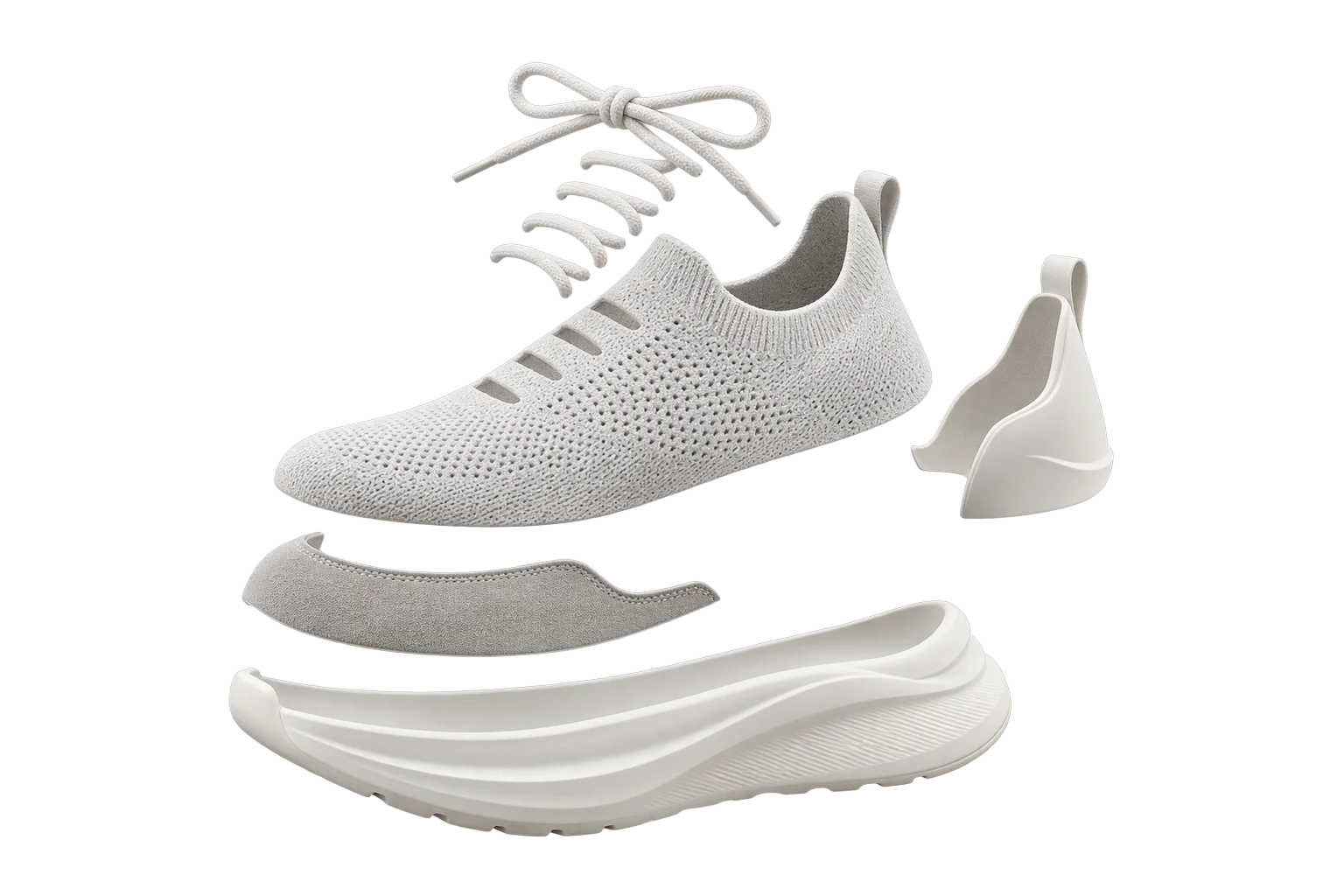
The tradeoff between one monolithic 3D file and dozens of part files
When building a multi-zone product customizer, teams often face an awkward choice. If they import a product as one monolithic 3D object, they cannot attach separate visibility rules, click triggers, or animations to the collar, sole, or hardware. Conversely, if they export 20 separate GLB files from Blender and upload them one by one, the browser fires 20 HTTP requests on startup and part origins easily drift out of alignment.
Aircada gives you both single-file simplicity and per-part control through sub-mesh unit decomposition and interactive viewport splitting. You upload one multi-part 3D file, and the engine automatically spawns an addressable scene unit for every layer and sub-mesh while backing all of them with a single reference-counted GPU media cache. Each extracted sub-mesh binds directly to option SKUs, conditional rules, and pricing so multi-part builds flow into Shopify or headless checkouts with accurate assembly lists for fulfillment.
Turn one multi-part 3D file into independent scene units
When you import a multi-mesh model into Studio, Aircada wraps the parent file in a structured object set and extracts every named layer and sub-mesh as its own scene unit with exact local transforms and original material mappings intact. If a fused model still needs finer separation after upload, enter interactive Split Mesh mode in the viewport to click or drag-select specific sub-meshes and split them out without returning to CAD.
Fetch once over the network and share geometry in VRAM
Even if an uploaded assembly splits into 40 configurable sub-meshes, the browser downloads and parses the source binary only once. Aircada's live media cache deduplicates concurrent loads for the same asset URL, tracks every active unit holding a reference to that model or texture, and frees GPU buffers automatically once the last referencing unit unloads.
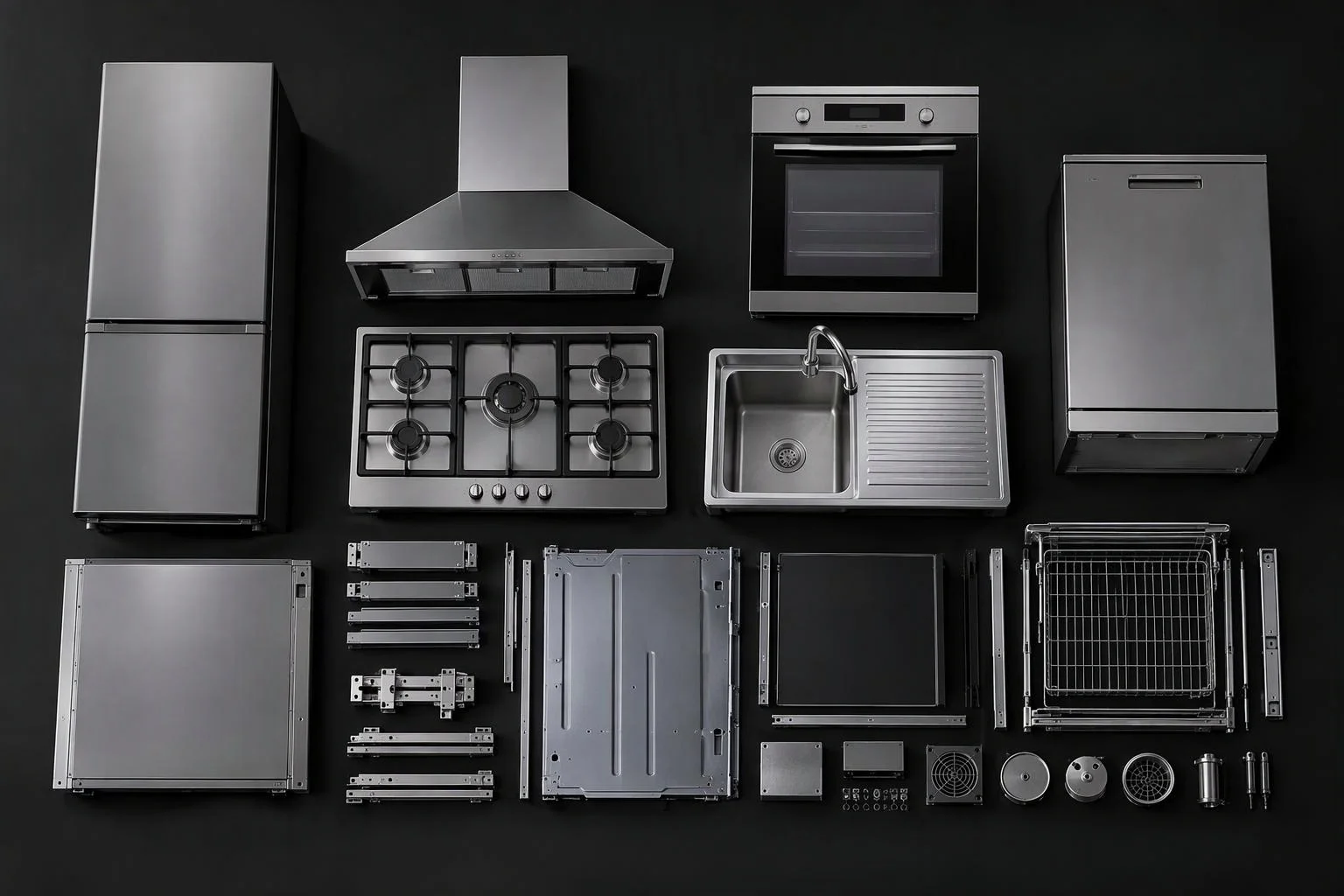
One export for 3D artists, individual part ports for Studio builders
Keep your 3D asset pipeline clean without sacrificing granular configurator logic.
Export the entire assembly as a single file
Artists model and align all cushions, frames, stitching, and hardware inside a single Blender or CAD scene and export one file. There is no need to batch-export dozens of individual part files or manually re-enter XYZ offsets in the browser.
Wire rules, materials, and click events to any sub-mesh
Inside Studio, every sub-mesh appears as a first-class unit. Merchandisers can hide a hood when a collar option is chosen, animate a single drawer front, split out a fused hardware trim directly in the viewport, or let shoppers click on a watch bezel to open its finish menu.
| Capability Stage | Verified Engine & Studio Behavior | Operational Benefit |
|---|---|---|
| Automatic Import Decomposition | Creates scene units for every mesh and nested layer, preserves local position/rotation/scale, corrects USDZ up-axis orientation, and collapses redundant single-root wrappers. | Zero manual re-alignment after importing complex assemblies from Blender or CAD. |
| Viewport Split Mesh Mode | Click or Shift/Ctrl drag-select highlighted sub-meshes with live selection count; supports Split All, Split (cut), and Duplicate (copy). | Separates late-discovered customization zones inside Studio without round-tripping to 3D artists. |
| Request Deduplication | Concurrent unit loads referencing the same GLTF or texture URL join the single in-flight fetch promise. | Cuts startup HTTP overhead on multi-part products from dozens of requests down to one. |
| Reference-Counted Disposal | Tracks active holder count per cached asset URL and invokes GPU disposal automatically when active holders reach zero. | Prevents VRAM leaks when shoppers browse across multiple configurable models on mobile. |
Products built with multi-mesh decomposition
Ideal whenever a single product has multiple customizable zones, swap-in accessories, or moving parts.
Custom footwear & team uniforms
Split a sneaker or jersey into 8 to 15 colorable panels, laces, eyelets, and soles that all load from a single compressed GLB payload.
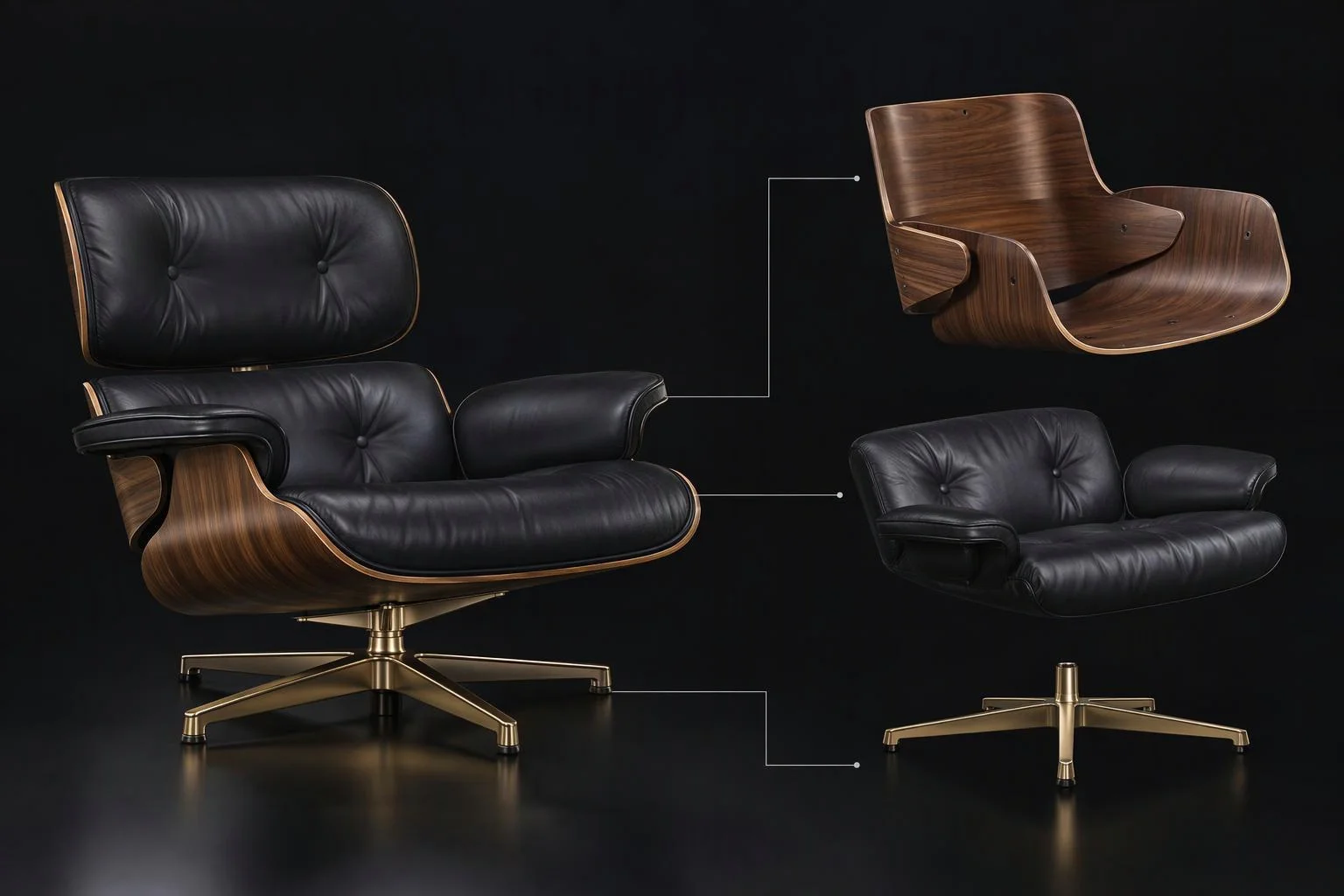
Upholstered furniture & seating
Separate wooden frames, seat cushions, piping welt cords, and throw pillows so shoppers can mix fabrics and wood stains independently.
Optional hardware & trim packages
Pack optional roof racks, spoilers, or cabinet handles inside one master asset and toggle sub-mesh visibility based on customer selections.
Multi-part mechanical assemblies
Address individual valves, levers, and access panels inside an industrial machine for interactive click inspection and cutaway animations.
Responsibility Tiers
- 1 Native Aircada layer
- 1 Aircada Configuration layer
- 1 Custom Implementation layer
- 1 External layer
Responsibility Boundaries Across 3D Mesh Splitting
How Aircada's object-set decomposition, Studio sub-mesh wiring, and 3D scene naming divide responsibilities.
Object-set decomposition, viewport splitting & reference-counted GPU cache
- Native Aircada
- Single-fetch binary loading with concurrent request deduplication, sub-mesh unit instantiation, interactive Split All/Cut/Duplicate tools, and automatic VRAM disposal when holder counts reach zero.
Sub-mesh material bindings, visibility toggles & transform overrides
- Aircada Configuration
- Configured in Aircada Studio by selecting individual extracted sub-meshes in the scene tree and binding material datasets, visibility rules, or animations.
Interactive part-picking menus & zone highlight states
- Custom Implementation
- Wiring sub-mesh click triggers to open context-specific UI drawers or highlight the clicked zone on the 3D product.
Logical sub-mesh naming in Blender or CAD
- External
- Naming sub-meshes clearly (such as CushionSeat, FrameOak, or Buckle_Left) in your 3D authoring tool so they are easy to identify in Studio.
Frequently Asked Questions
Does splitting a 3D model into 15 sub-meshes cause the browser to download the file 15 times?
Can we hide, recolor, or animate one split part without affecting the rest of the model?
What happens in GPU memory when a shopper switches to a different product model?
How does mesh splitting interact with the CAD-to-web pipeline?
Export configured 3D builds to USDZ, GLB, GLTF, and OBJ
Bake live procedural shaders into portable 2D textures and export customer-configured 3D models for iOS AR Quick Look or CAD workflows.
Related capabilities
Explore the adjacent capabilities and integrations that pair with this workflow.
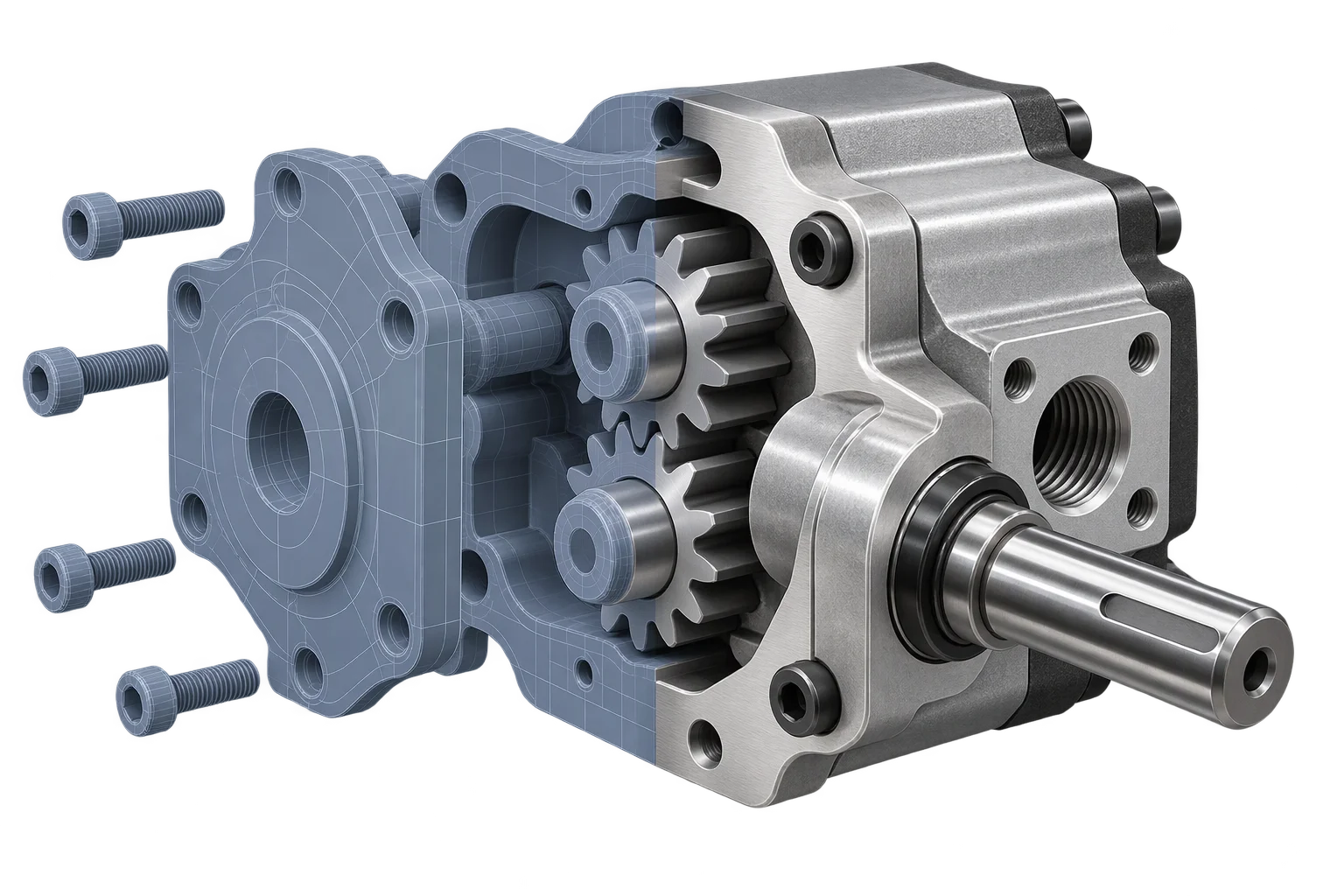
Engineering CAD to web-ready 3D conversion
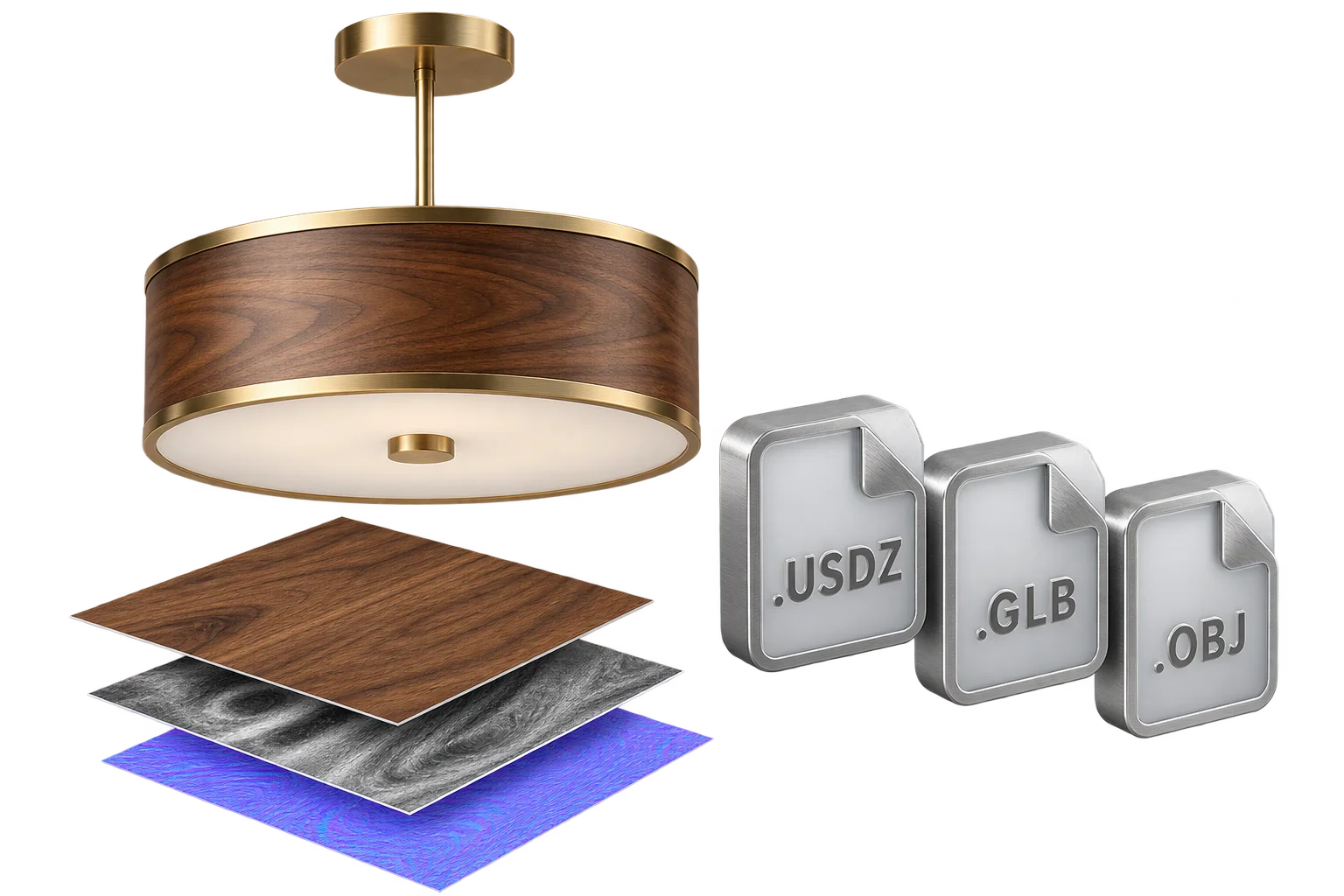
Texture-baked 3D exports to USDZ, GLB, and OBJ
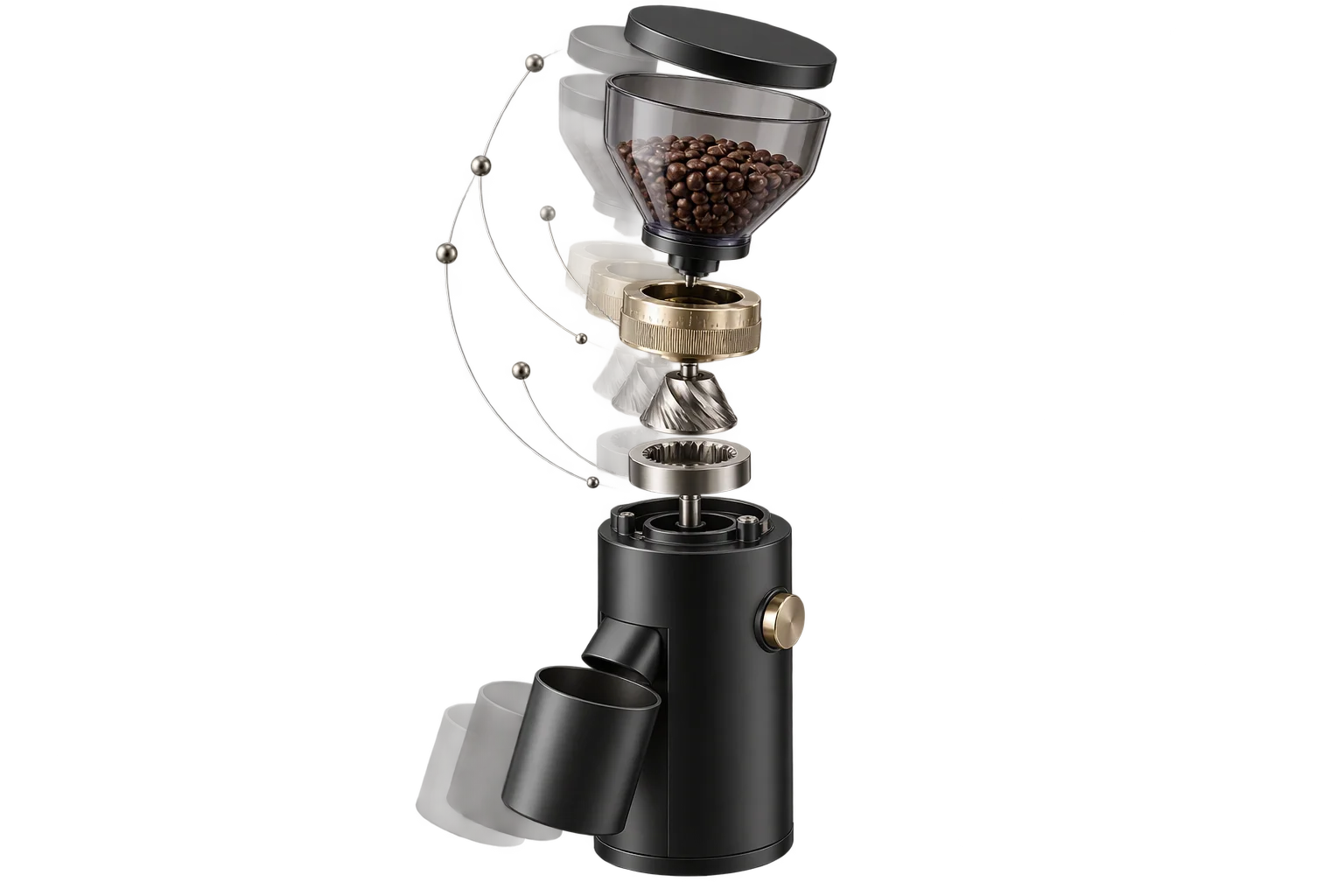
Interactive 3D part animations and motion playback